
DS
PLAYER
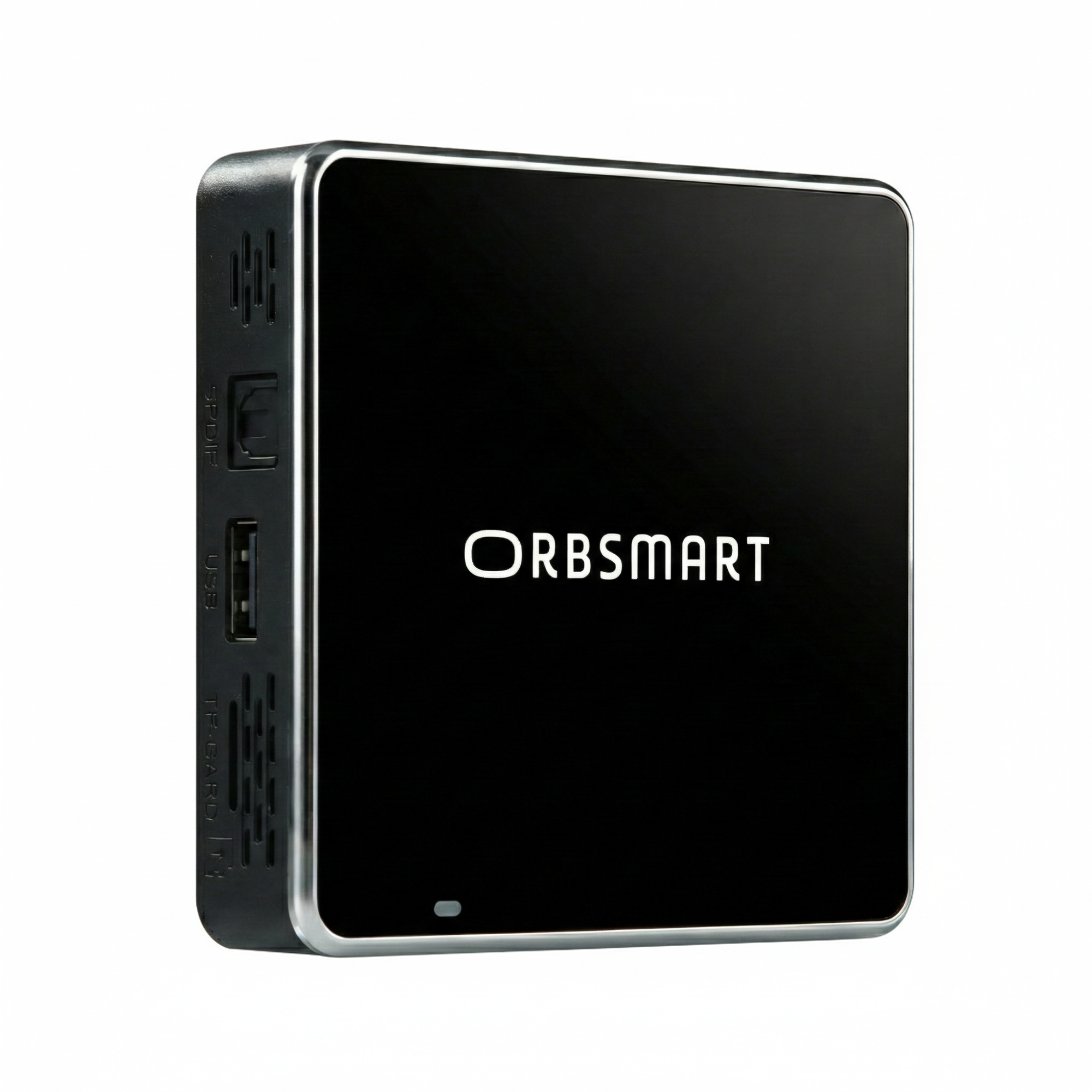
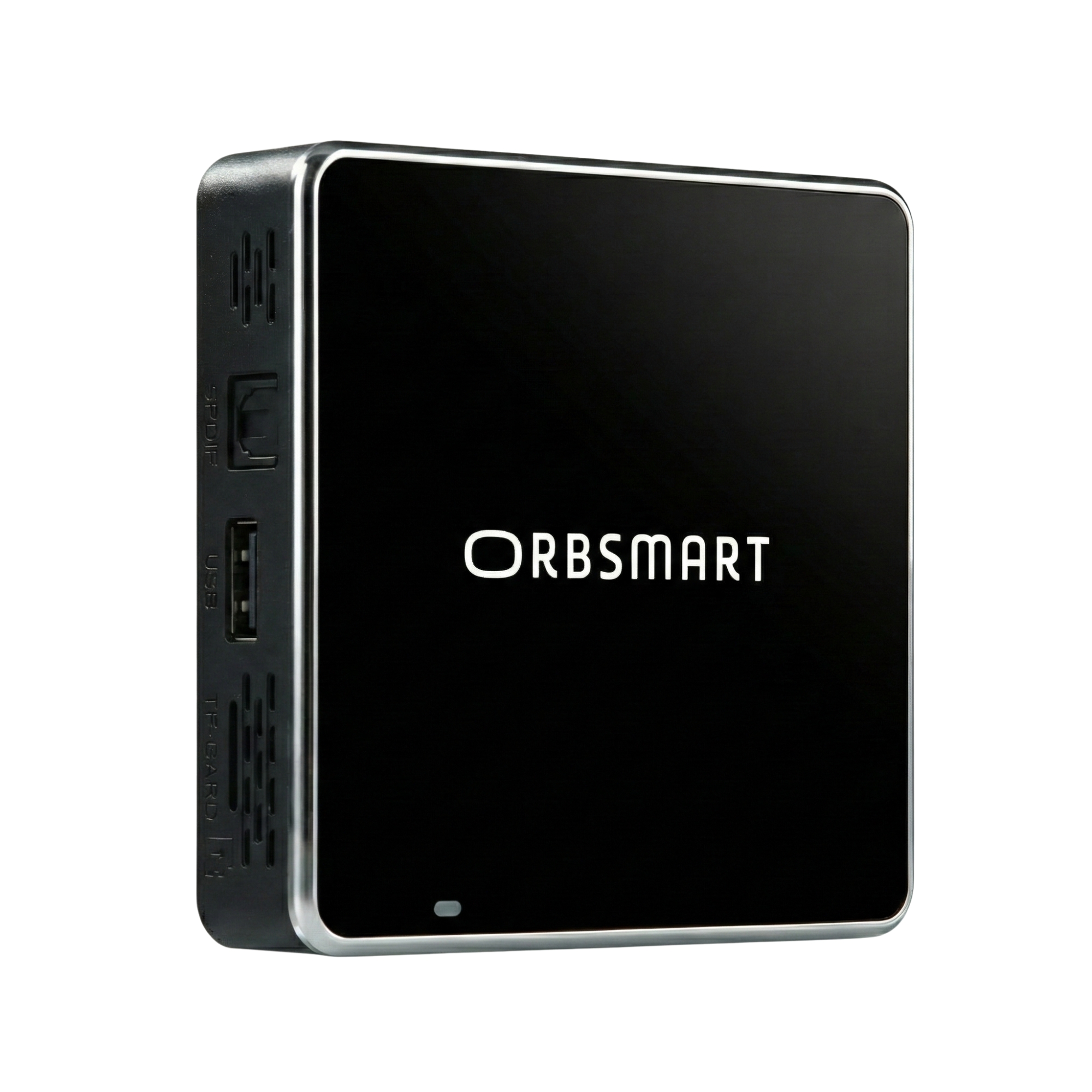
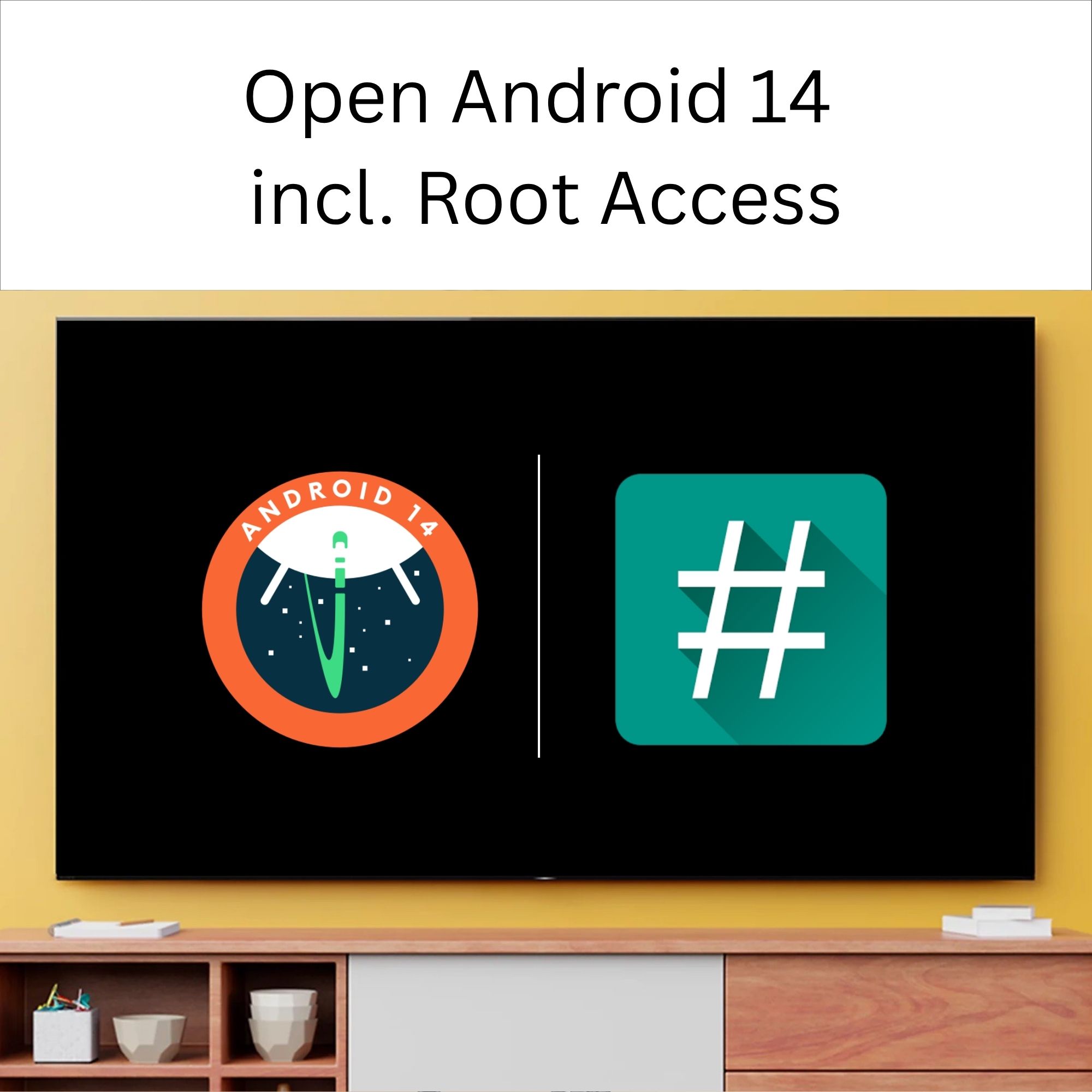
Maximum reliability for your displays. The Orbsmart DS Player is designed specifically for maintenance-free 24/7 continuous operation. With open Android 14, Autostart function, and an extremely lightweight housing, it is ideal for easy mounting behind POS displays and kiosk systems.
Highlights
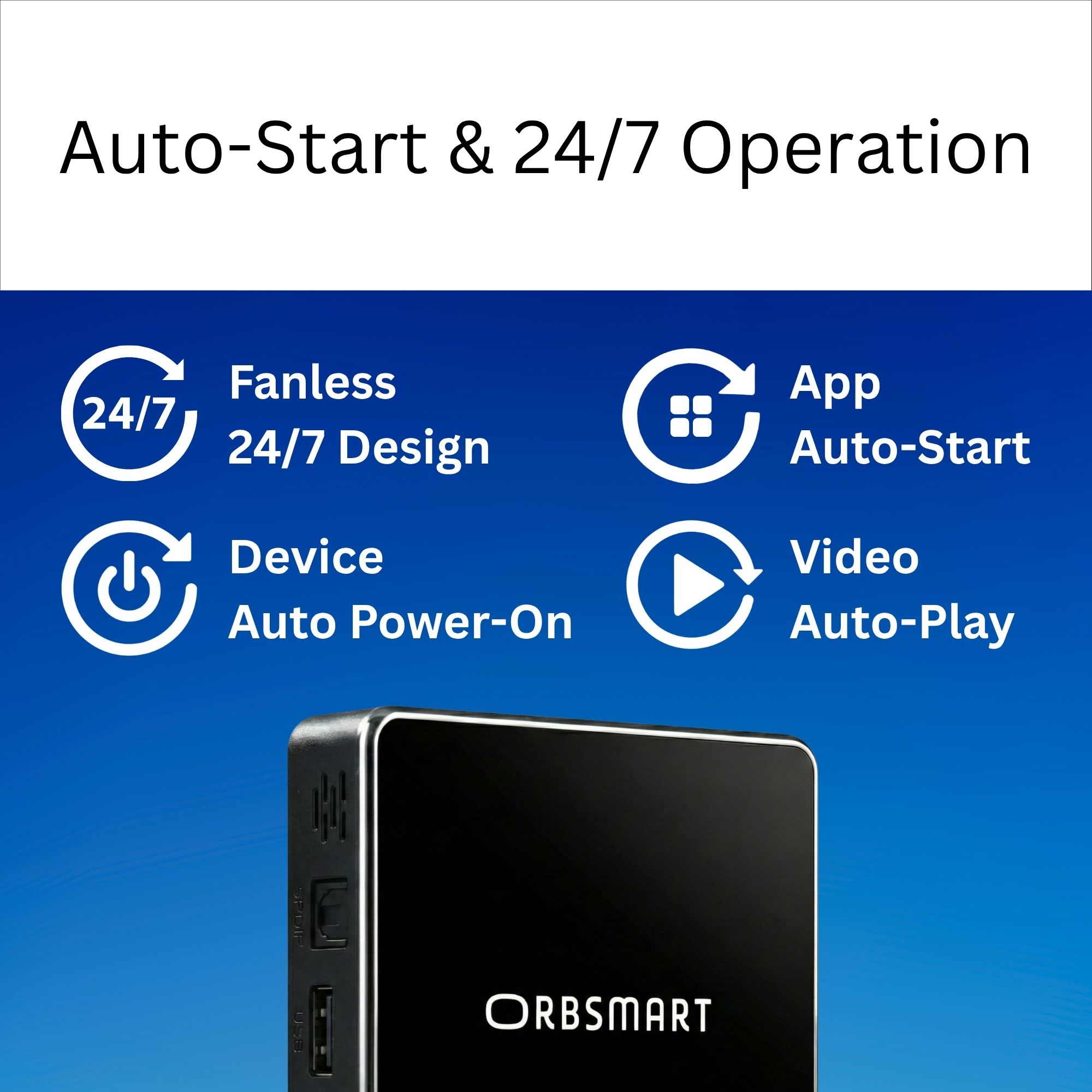
24/7 Autostart & Loop
Starts automatically upon power supply. Content is played seamlessly in a continuous loop.

Portrait Mode
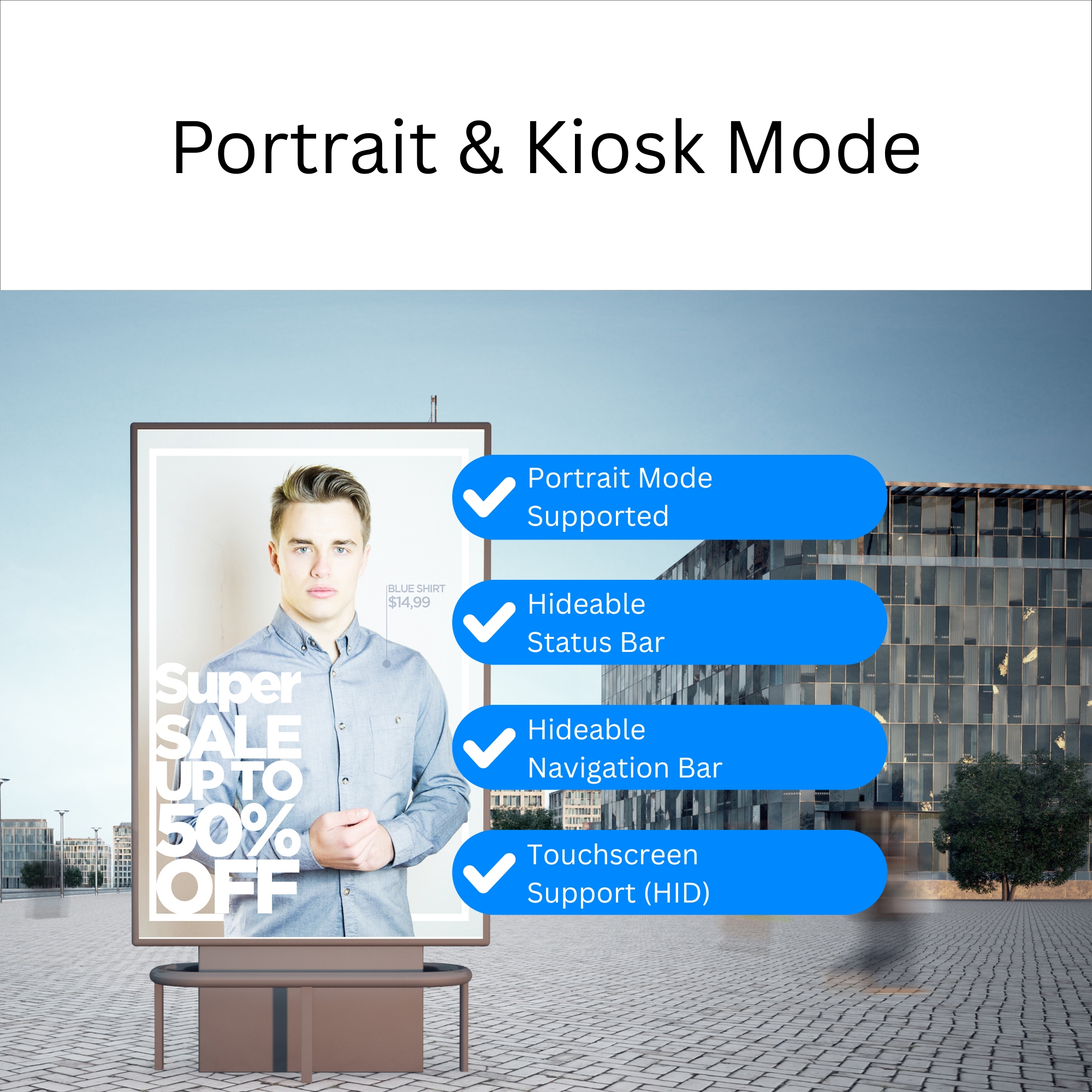
Hardware-based rotation (90°/270°) for vertical displays. Ideal for info steles and digital menu boards.

Root Option
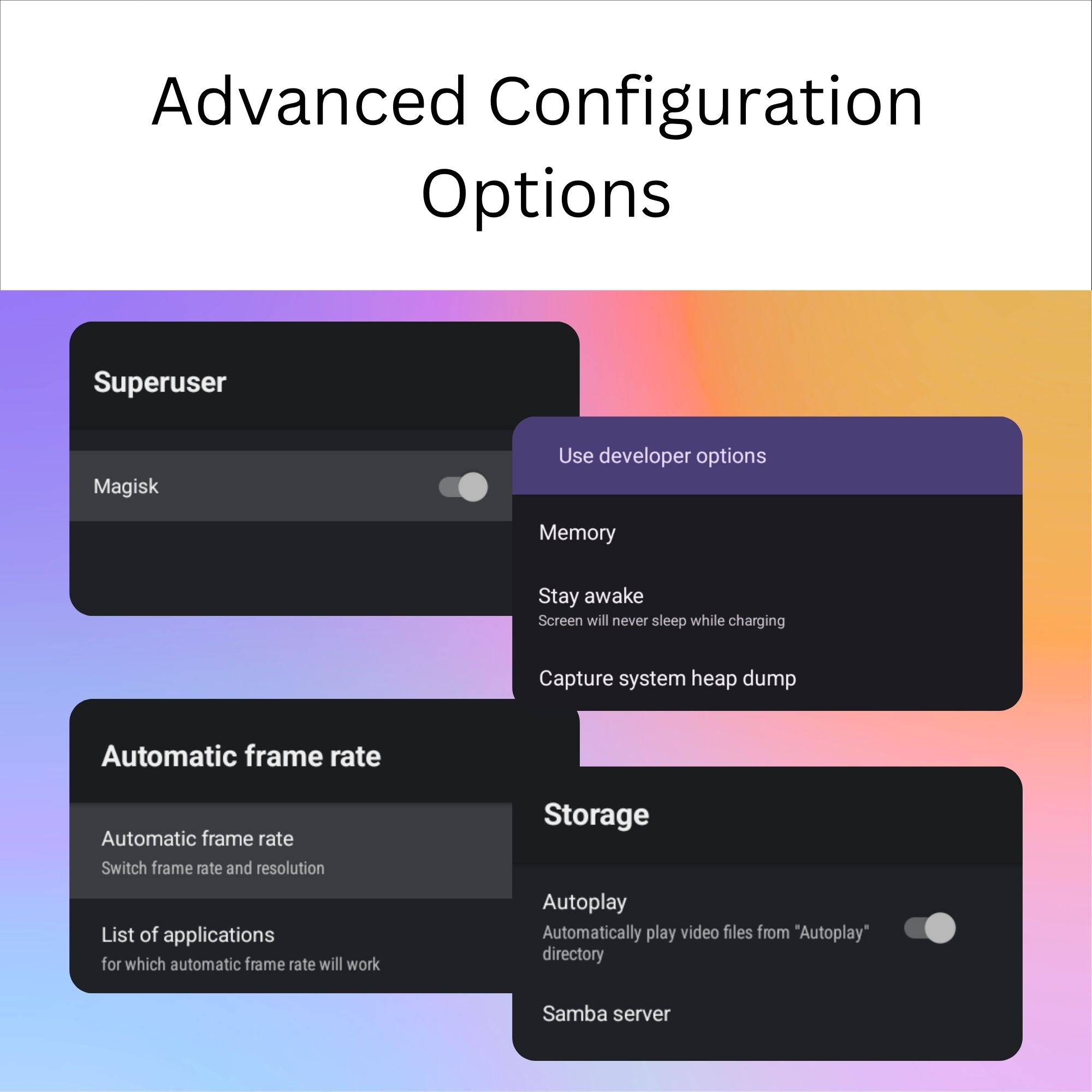
Integrated Root Switch for administrator rights. Enables deep system access and specialized control apps.
Automatic 24/7 Operation
Maximum operational reliability. The DS Player is designed for unattended use. Thanks to the 'Autostart on Power' function, the system boots up automatically. Your content or apps are then played automatically and seamlessly in a loop – without manual intervention.
Maximum Compatibility for Your Projects
No vendor lock-in. Thanks to open Android 14, you have the choice: Use common player apps from the store, install your own corporate APK (sideload), or use common remote solutions for maintenance. Compatibility is your strength.
4K HDR & Flexible Orientation
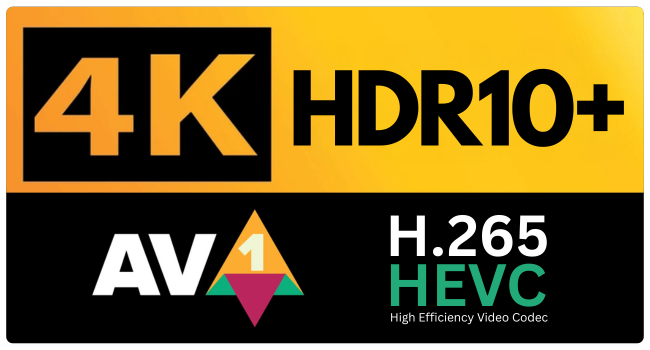
Your message needs to look good. The DS Player natively supports 4K Ultra-HD (60Hz) and modern AV1 codec for brilliant images. Whether landscape over the counter or portrait in a stele: The system adapts to your mounting setup.
Tamper-proof Kiosk Operation
Secure and focused operation. For use in public areas, the navigation and status bars can be permanently hidden to ensure a pure full-screen mode (Kiosk). Unauthorized access is effectively prevented. Administrators gain full control if needed via the hardware Root Switch.
Interactive & Connected
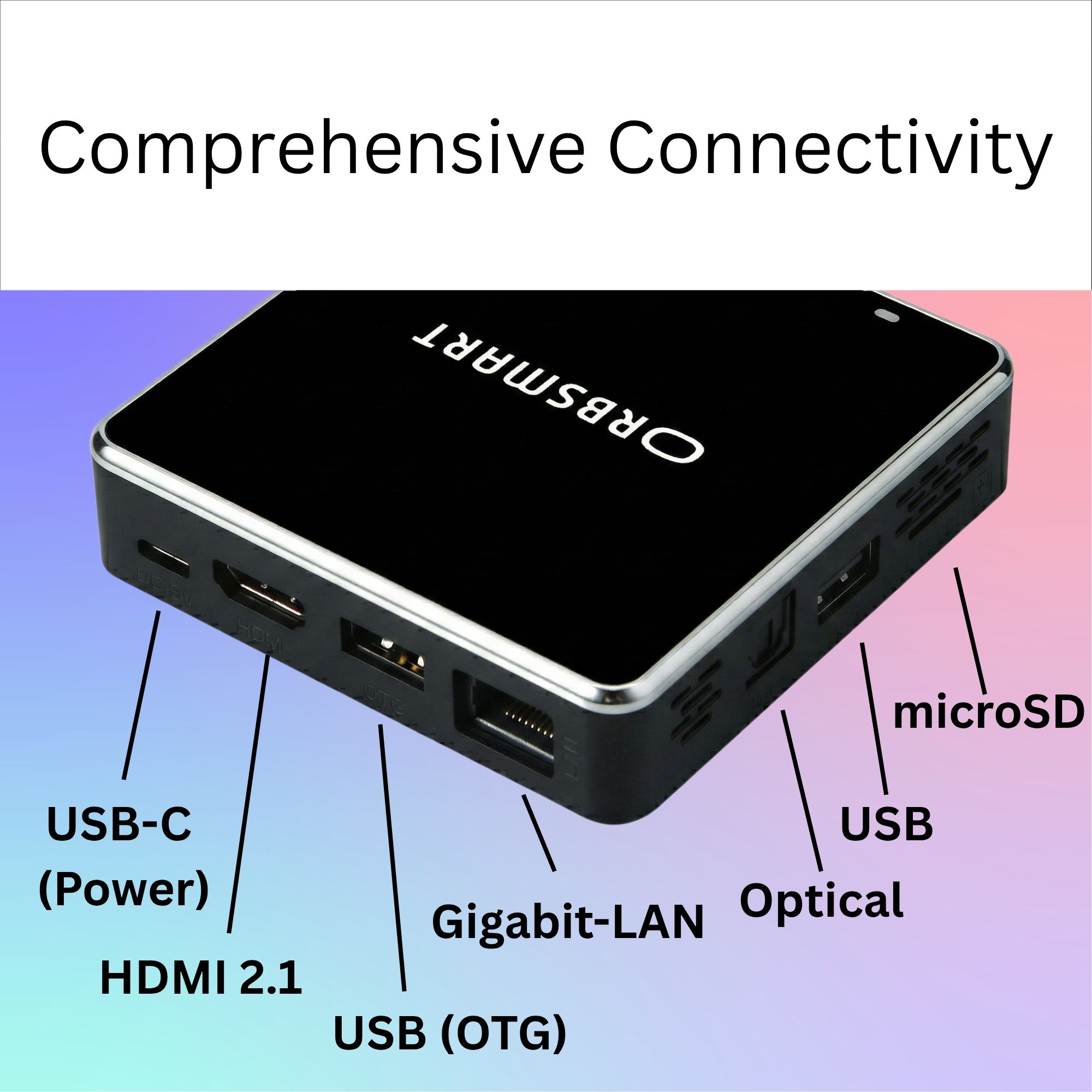
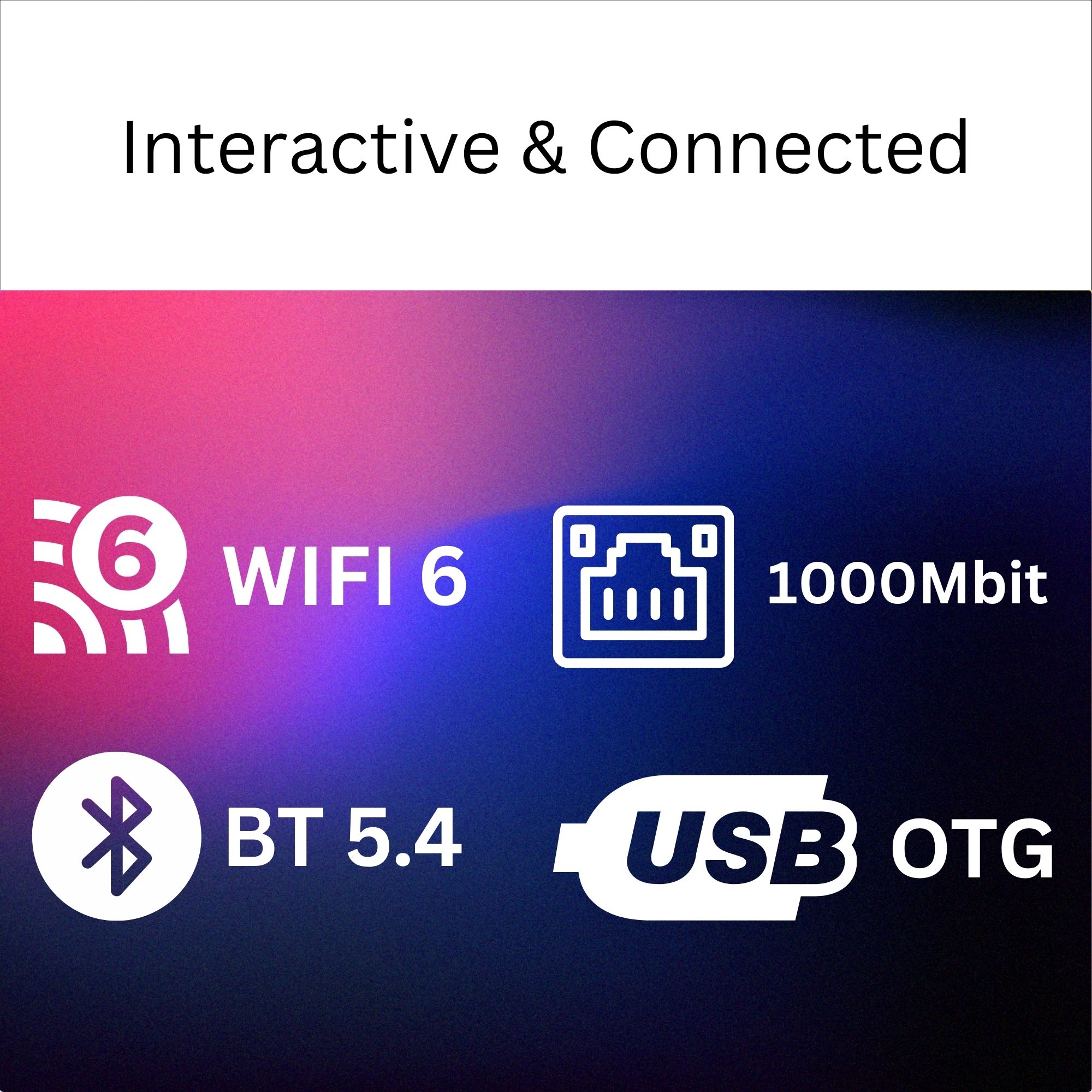
Gigabit LAN and WiFi 6 ensure a stable connection to your CMS – even with large video files. Touchscreens (HID standard), barcode scanners, or mice for interactive terminals can be connected via the USB ports.

Powerful & Efficient
The modern Quad-Core processor (S905X5M) provides enough performance for complex HTML5 animations or 4K videos while remaining extremely power-efficient. This significantly lowers the Total Cost of Ownership (TCO) in continuous operation compared to PC-based solutions.
Technical Specifications
Buying Guide (Pre-Sales)
Does the device support touchscreens?
Is a "Kiosk Mode" possible?
Can the navigation and status bars be displayed?
How do I install my own software?
Is a Google account strictly necessary?
How does the Orbsmart DS Player differ from the Orbsmart S89L?
Can I manage files and videos remotely?
1. Integrated Local Network (Samba Server): For devices located in the same building or local network, the system features an integrated file server right out of the box. Once activated, the DS Player appears directly as a network drive on your PC. You can easily and wirelessly transfer new files/videos via drag-and-drop to the internal storage or a connected USB stick – securely password-protected if desired.
2. Cloud Synchronization (Cross-location): Popular auto-sync apps (e.g., for Google Drive, OneDrive, or Dropbox) can be installed via the Google Play Store. As soon as you upload new files/videos to your cloud from your workspace, the DS Player automatically downloads them in the background and updates the corresponding local folders on the device. This allows dozens of players worldwide to be centrally managed and supplied with new content.
Knowledge Base & Support
Help with settings and technical problems. Solutions directly from our technicians.
How does the video auto-play function work?
- Navigate to Device Preferences → Storage → Autoplay and turn the function on.
- Create a new folder on your USB stick or SD card with the exact name autoplay.
- Copy your desired video files into this folder.
Can a specific app start automatically after booting?
You can now simply select your desired app in the app settings. The system will then launch this app fully automatically right after booting. The installation of an additional third-party app is no longer necessary!
The DS Player turns on or off by itself. How can I prevent this?
- In the menu, go to Settings → Inputs & Devices → HDMI CEC.
- Disable the options for automatic power on and off (e.g., "Auto power on" / "Auto power off") or turn off the CEC switch completely if you want to control the devices strictly separately.
How do I install and activate another launcher (home screen)?
- Download your desired launcher (e.g., Nova Launcher, Wolf Launcher) via the Google Play Store.
- Then go to Settings → Apps → Default apps → Home app.
- Select your newly installed launcher there. From now on, the device will always start with the new interface.
