

GD2 – 4K Google TV Streaming Box
The versatile streaming hub. Turn your TV into a modern entertainment system with Google TV 14, a stable LAN connection, Dolby Atmos, and a generous 32 GB of storage for apps and media.
Buy in official shopHighlights at a glance

Modern Google TV 14
Benefit from an intuitive interface, personal recommendations, and direct access to the Google Play Store.

Excellent Picture Quality
Enjoy movies in brilliant 4K resolution, with dynamic HDR10+ and room-filling Dolby Atmos sound.

Full Connectivity
Maximum flexibility: LAN for stable streaming, optical audio output for your sound system, and 2x USB for your media.
Ready to go instantly
Setup is done in minutes. Connect the GD2 to your TV via the included HDMI cable, plug in the power adapter, and follow the short setup wizard. It's that easy to turn your TV into a modern Smart TV.

The Connectivity Hub
The GD2 offers what small streaming sticks lack: true port variety. Use the LAN port for buffer-free wired 4K streaming, the optical output for your soundbar or HiFi system, and 2x USB for hard drives and accessories.

Everything in one place
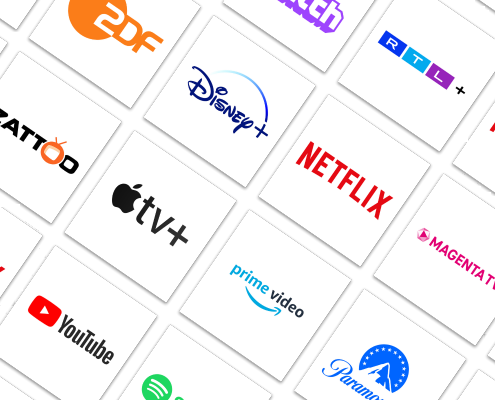
End the endless searching. Google TV bundles Netflix, Disney+, Prime Video, YouTube, and your media libraries on a clear home screen. Discover new series and movies faster than ever before.
Stunning Visual Experience
Immerse yourself in lifelike worlds. Thanks to 4K UHD and HDR10+, colors and contrasts are displayed precisely. Supported by Dolby Atmos, your living room acoustically transforms into a movie theater.

Sharing made easy
Your photos, videos, or presentations belong on the big screen. With Chromecast built-in™, you can wirelessly cast content from your smartphone, tablet, or laptop directly to the TV.

Limitless App Selection
Get more out of your TV. Thanks to 32 GB storage and the official Google Play Store, you have access to thousands of TV-optimized apps – from streaming services and IPTV to media libraries and games.
Smart Voice Control
Control at the push of a button. Press the Google Assistant button on the Bluetooth remote and conveniently search by voice for movies, actors, or apps. Thanks to wireless Bluetooth technology, the box doesn't even need to be in your line of sight.

Technical Specifications
Unsure which player is right for you?
From a compact stick to a high-end TV box with 4 GB RAM, WiFi 6, and Dolby Vision. We have the right device for every need. Compare all models directly with each other.
Compare all modelsBuying Guide & Pre-Sales Questions
Does the GD2 work on any TV?
Is a Google account mandatory?
Which apps can I use & are there monthly costs?
There are no monthly costs for using the GD2 box itself. You only pay the normal subscription fees for the streaming services you personally want to use (such as Netflix or Disney+), provided you have a paid account there.
What is the advantage of the GD2 over a basic streaming stick?
- Large 32 GB storage: Twice to four times the internal storage of typical sticks for dozens of apps without storage warnings.
- LAN & 2x USB: An integrated network port for stable wired 4K streaming plus two USB ports for hard drives, flash drives, or peripherals.
- Optical audio & power adapter: Direct digital audio output (SPDIF) for soundbars/HiFi systems and a dedicated wall power supply for continuously stable operation.
Can I connect my own hard drives and USB sticks?
Can Sky Q, Sky Go, and WOW be used?
Troubleshooting & Knowledge Base
Help with settings and technical problems. Solutions directly from our technicians.
Prime Video shows an HDMI connection error. Is the box defective?
- Original cable: You must use the included HDMI cable. Older cables from your home often do not reliably support the necessary copy protection standard (HDCP 2.2).
- Handshake Reset: Completely disconnect the TV and the GD2 from the power. Unplug the HDMI cable, plug it back in, and restart the devices.
Picture looks overexposed (bright faces) or pixelated background
- Go to Settings (gear icon) → Display & Sound → Resolution.
- Change the HDR setting from "Always HDR" to "Adaptive" or completely to "SDR" (Off) as a test.
- In the same menu, change the Color Space from "Auto" to "RGB" or "YCbCr 4:2:0".
- Restart the box afterwards.
Picture freezes in Live TV apps, but audio continues
- Go to Settings → Display & Sound → Resolution.
- Disable the auto-switch function.
- Manually select 4K 50Hz (or 1080p 50Hz). The Live TV apps will run flawlessly and stably again afterwards.
Why does the picture stutter during movies or show brief double contours?
- Go to Settings → Display & Sound → Resolution (or Playback).
- Activate the option Match Content Frame Rate.
- Set it to Always. The box will now automatically switch the TV to the judder-free refresh rate for the duration of the movie.
The GD2 keeps restarting during boot (Boot loop)
Please explicitly use the included original power adapter of the GD2. If the box is connected to a third-party power supply, a USB hub, or directly to the TV's USB port, the processor does not receive the required power for the boot process. With the original power adapter plugged into the wall outlet, the system will boot up stably immediately.
The remote control no longer responds or reports constant updates
- No reaction: If it stops responding, it has simply lost its wireless pairing with the box. Press and hold the Back button (left arrow) and the Home button (house symbol) simultaneously on the remote for about 5 to 10 seconds to reconnect it.
- Constant update messages: If the screen repeatedly shows that the remote control is updating, this is a sign of slight voltage fluctuations in weak batteries. Replace the batteries with new branded AAA batteries to solve the problem immediately.
The box (and the TV) turns on by itself
- Go to Settings → Display & Sound → HDMI-CEC.
- Turn off the CEC Switch or Auto Wake options there. The devices will now remain in standby until you consciously turn them on with the remote.
Why are certain apps like NordVPN already pre-installed?
USB hard drive is not recognized or the system prompts for formatting
Powerful media player apps like VLC for Android or Kodi come with their own drive drivers. If you download these apps for free from the Play Store and open them, they can directly read your NTFS or exFAT hard drive. You can easily play your videos without the main Google system needing to mount the stick or hard drive natively.
If your hard drive does not even appear in the list within the specialized apps mentioned above, this is clear evidence of an insufficient power supply. Mechanical hard drives require a very high starting current to set the physical disks inside in motion. The compact design of the GD2 technically does not allow such high power peaks to be delivered via the USB port.
The simple solution: Use a powered USB hub (a USB splitter with its own power adapter for the wall outlet). Connect your hard drive to this hub. Its power supply now provides the required power for the drive, while the GD2 only processes the data. In this combination, even large NTFS hard drives are recognized immediately and run absolutely stably.
How do I reset the GD2 to factory settings?
- Navigate to Settings (gear icon).
- Select System → About.
- Click on Factory reset and confirm the process.

