
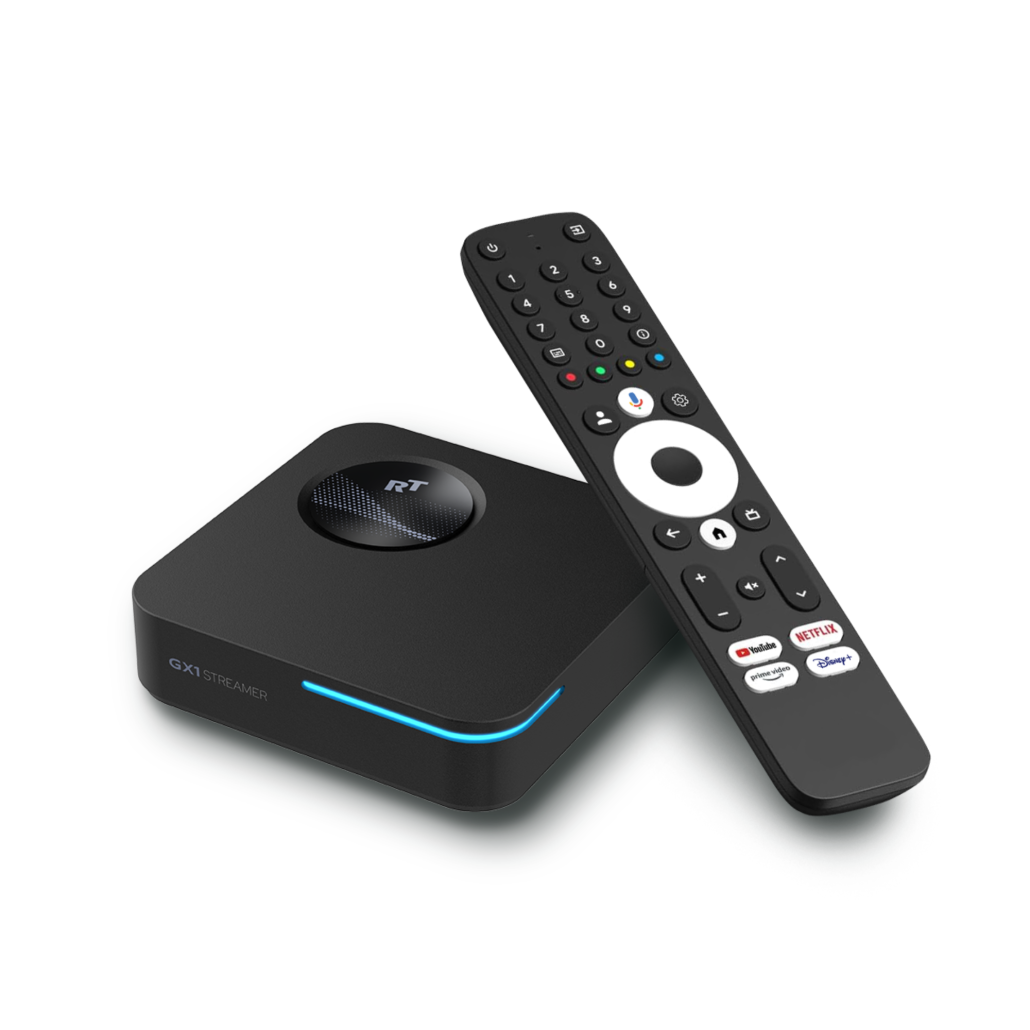
GX1
Picture and sound in perfection. The GX1 is our reference for uncompromising quality: Featuring a powerful Realtek processor, exclusive AI Picture Optimization, and full support for Dolby Vision & Atmos.
Buy in official shopHighlights at a glance

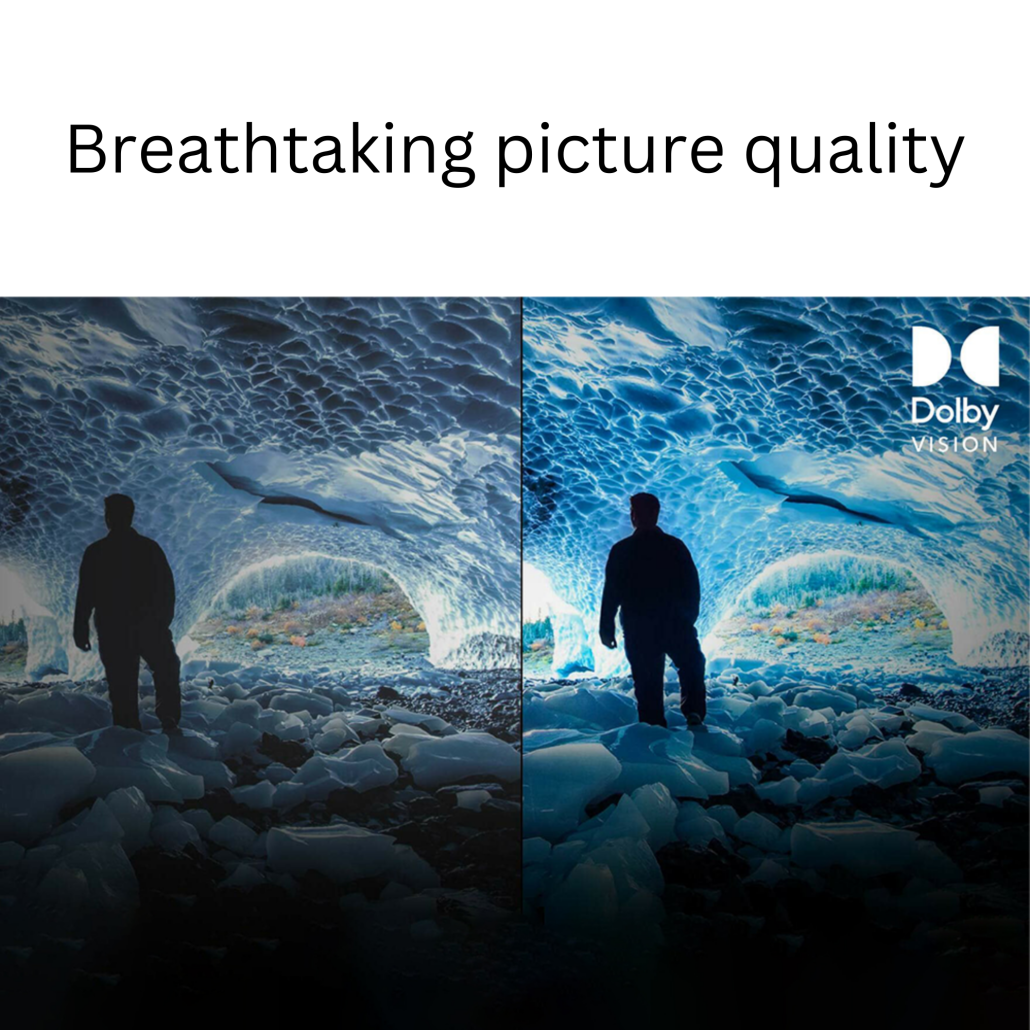
Dolby Vision & AI
Breathtaking picture quality thanks to Dolby Vision, HDR10+, and the exclusive AI-Picture-Quality Engine for enhanced sharpness.

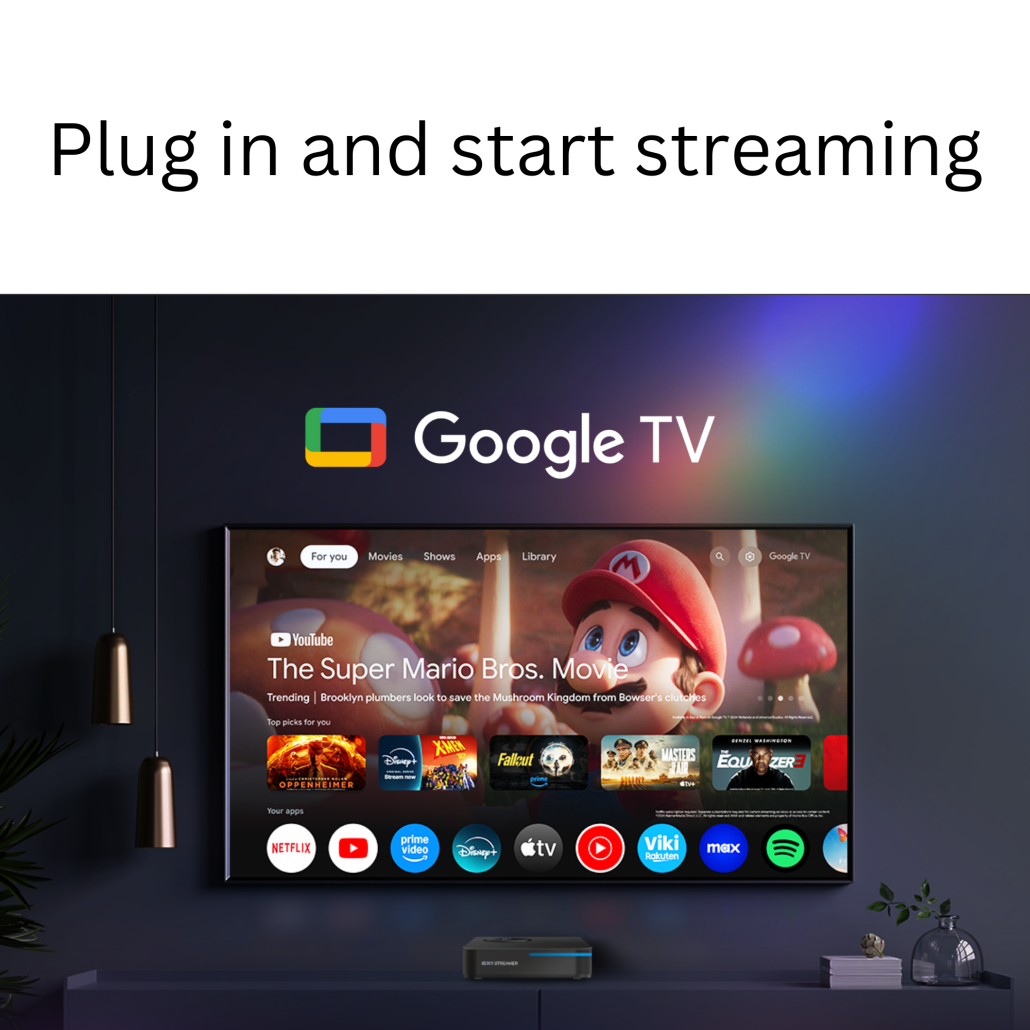
Smart Google TV 14 Hub
Experience an intuitive interface that bundles all your streaming services, including voice control and the Play Store.

Stable Connection
Always online: Enjoy stable streaming without buffering thanks to the integrated LAN port and cutting-edge WiFi 6 (AX).
Cinema feeling redefined
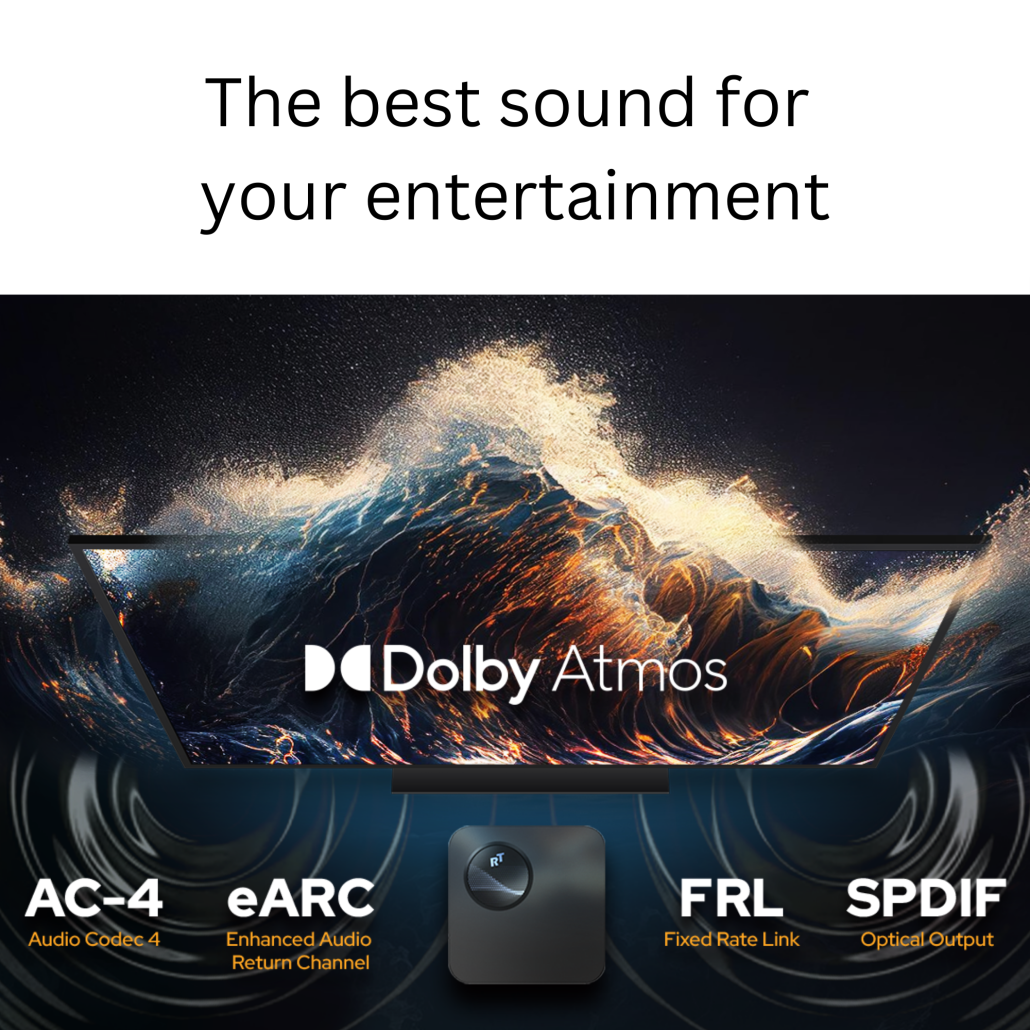
The GX1 brings the true cinematic experience home. With full support for Dolby Vision and Dolby Atmos, you can enjoy movies exactly as the directors intended – with maximum dynamic range and room-filling 3D sound.

Intelligent AI Picture Optimization
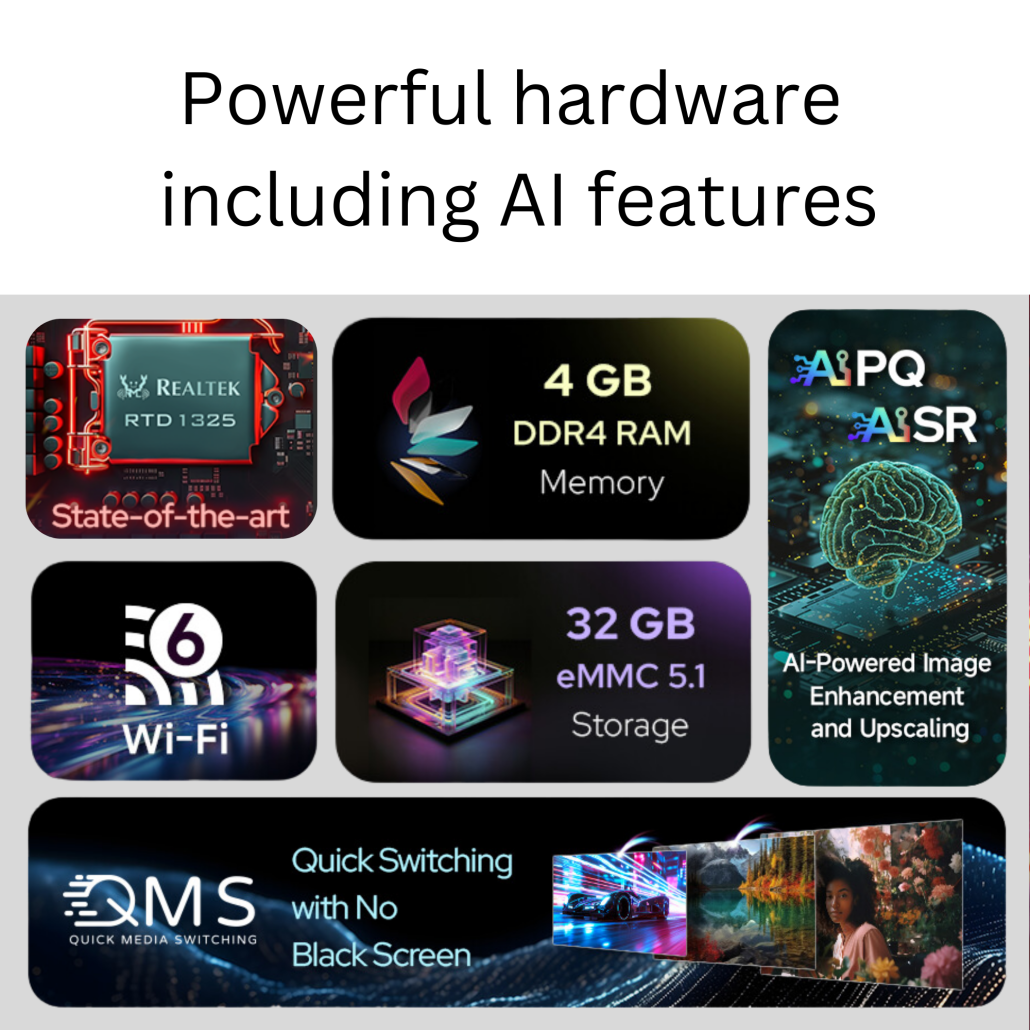
The powerful Realtek processor features an exclusive AI engine. It analyzes every frame in real-time to optimize colors, contrast, and sharpness (AI-PQ). Even older HD content shines in unprecedented brilliance on your 4K screen.
Everything in one place
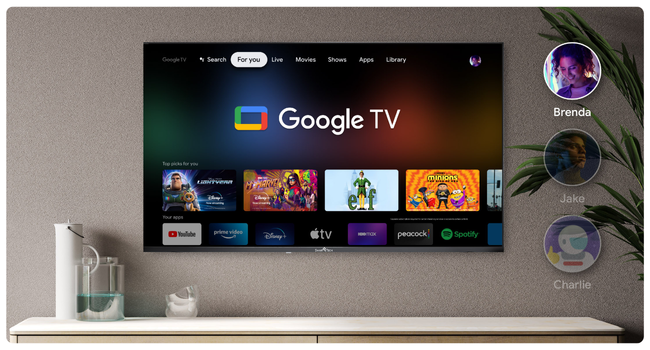
Google TV bundles content from all your streaming services on a clear home screen. Find new series and movies faster without constantly switching between different apps.
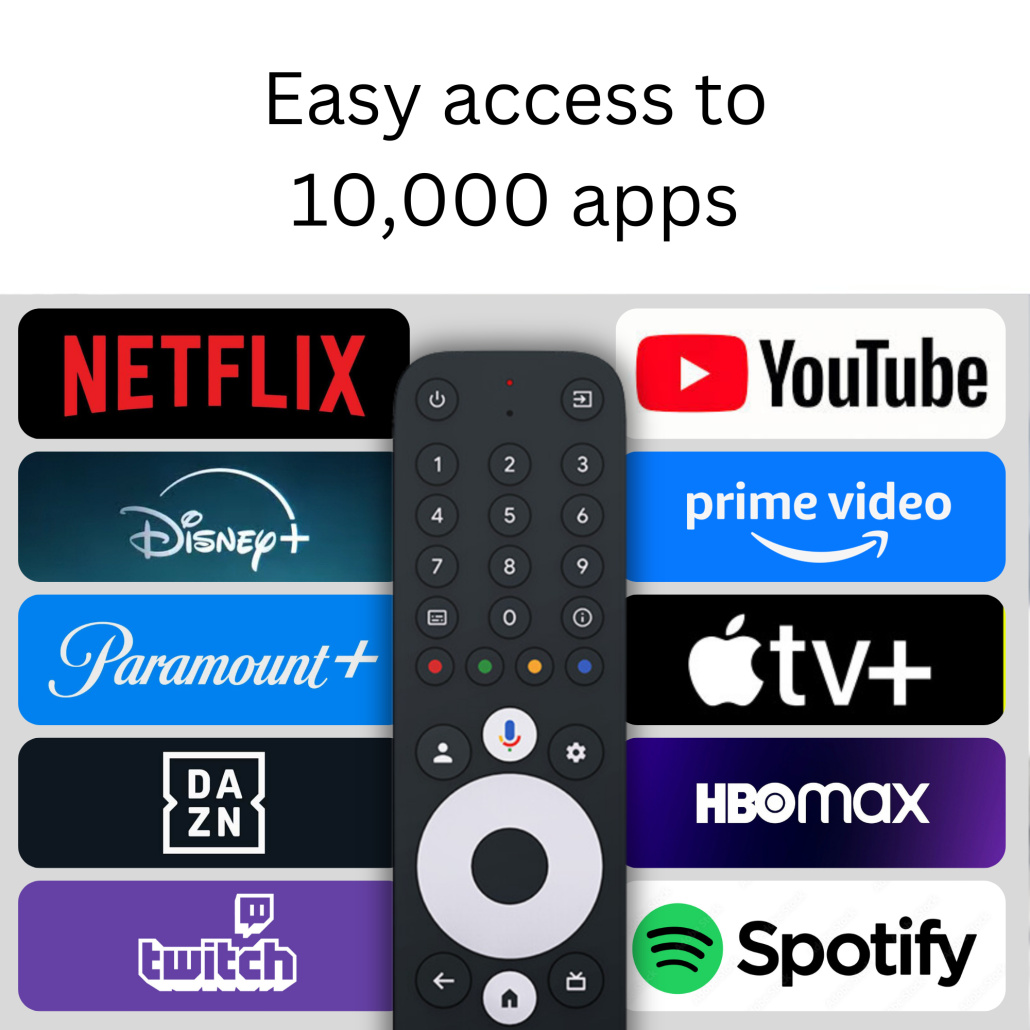
Limitless App Selection
Thanks to the official Google Play Store, the whole world of entertainment is open to you. Whether Netflix, Prime Video, Disney+, Apple TV+, or local catch-up TV – the GX1 provides access to thousands of optimized apps for your 4K TV.

Versatile Connectivity
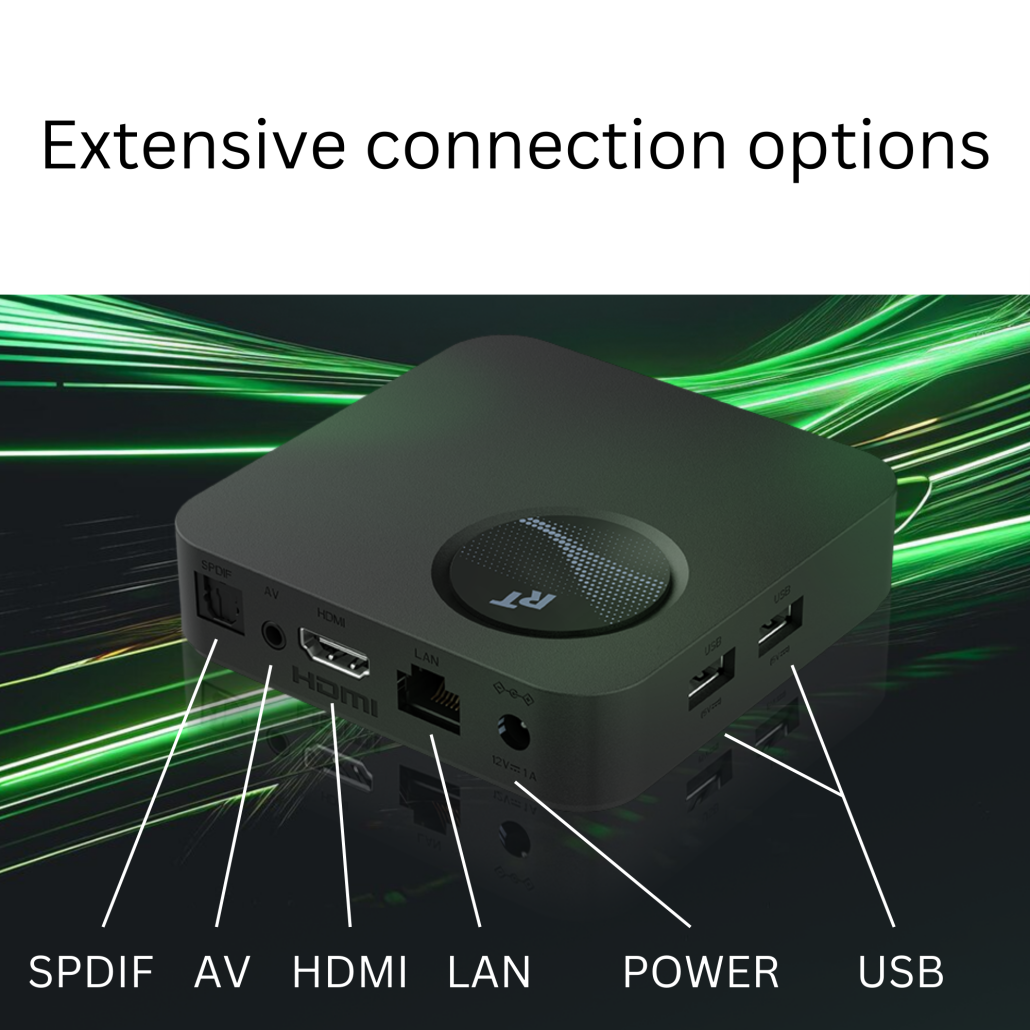
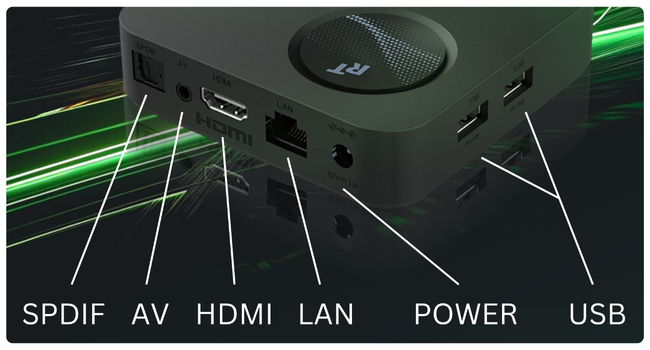
For demanding users, the GX1 offers everything you could wish for: A stable LAN port for streaming, the latest WiFi 6 for fast wireless internet, 2x USB for hard drives, and an optical audio output.
Sharing made easy
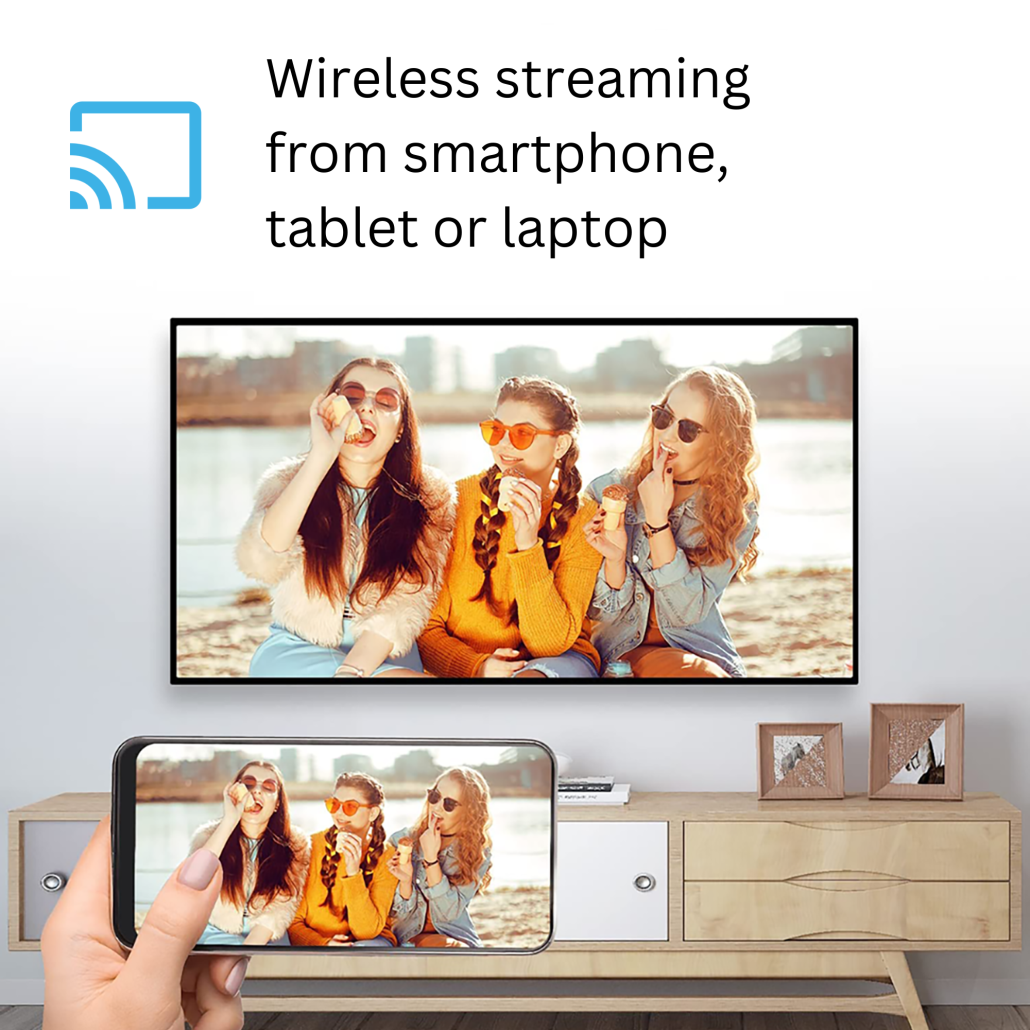
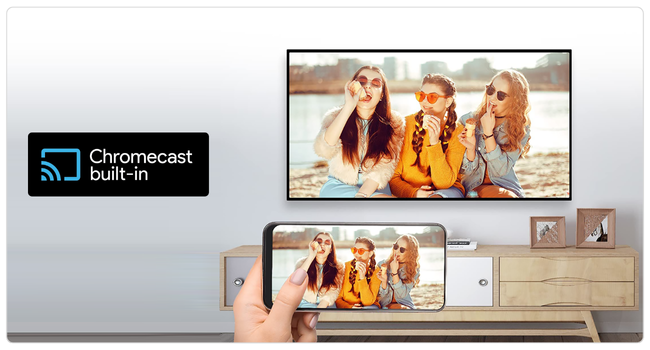
Your photos, videos, or presentations belong on the big screen. With Chromecast built-in™, you can wirelessly stream content from your smartphone, tablet, or laptop directly to your TV.
Technical Specifications
Unsure which player is right for you?
From a compact stick to a high-end TV box. We have the right device for every need. Compare all specs, ports, and features directly with each other.
Compare all modelsBuying Guide & Pre-Sales Questions
What do I need for setup and operation?
Which apps can I use & are there additional costs?
There are no monthly costs for using the box itself. You only pay the subscriptions of the respective streaming providers (e.g., Netflix) if you want to use them.
What is the advantage over a cheap streaming stick?
- More storage: 32GB internal storage (instead of often just 8GB) for dozens of apps without constant warnings.
- Ports: An integrated 100 Mbps LAN port for stable 4K streaming, two USB ports for external hard drives, and an optical audio output.
- High-end chipset: A powerful Realtek processor that keeps the system running smoothly even years from now.
What are the benefits of the AI features (AIPQ & AISR)?
Does the GX1 support external hard drives?
Troubleshooting & Knowledge Base
Help with settings and technical problems. Solutions directly from our technicians.
Prime Video shows an HDMI connection error
- Original cable: You must use the included HDMI cable (HDCP 2.2 capable).
- Handshake reset: Disconnect the TV and GX1 completely from the power supply. Unplug the HDMI cable, plug it back in, and restart.
Picture looks overexposed (bright faces) / pixelated background
- Go to Settings → Display & Sound → Resolution
- Change HDR setting from "Always HDR" to "Adaptive" (or test "SDR").
- Change Color Space from "Auto" to "RGB" or "YCbCr 4:2:0".
- Restart the device.
Picture freezes on Live TV apps, audio continues
- Go to Settings → Display & Sound → Resolution
- Disable auto-switch.
- Manually select 4K 50Hz (or 1080p 50Hz) and restart.
Picture stutters during movies (Judder / double contours)
- Go to Settings → Display & Sound → Resolution
- Enable Match Content Frame Rate.
- Set the value to Always.
Kodi / Plex: Do I have to change the frame rate manually?
Go to Settings → Player → Videos and set "Adjust display refresh rate" to On start / stop. Kodi will then automatically force the TV into the judder-free 24p mode.
The GX1 turns on by itself
- Go to Settings → Display & Sound → HDMI-CEC
- Turn off the CEC Switch or Auto Wake options.
Remote constantly reports new updates on the TV
The front LED is too bright. Can it be turned off?
Why are apps like NordVPN pre-installed on my new device?
USB hard drive is not recognized or the system prompts for formatting
Powerful media player apps like VLC for Android or Kodi come with their own drive drivers. If you download these apps for free from the Play Store and open them, they can directly read your NTFS or exFAT hard drive. You can easily play your videos without the main Google system needing to mount the stick or hard drive natively.
If your hard drive does not even appear in the list within the specialized apps mentioned above, this is clear evidence of an insufficient power supply. Mechanical hard drives require a very high starting current to set the physical disks inside in motion. The compact design of the GX1 technically does not allow such high power peaks to be delivered via the USB port.
The simple solution: Use a powered USB hub (a USB splitter with its own power adapter for the wall outlet). Connect your hard drive to this hub. Its power supply now provides the required power for the drive, while the GX1 only processes the data. In this combination, even large NTFS hard drives are recognized immediately and run absolutely stably.

