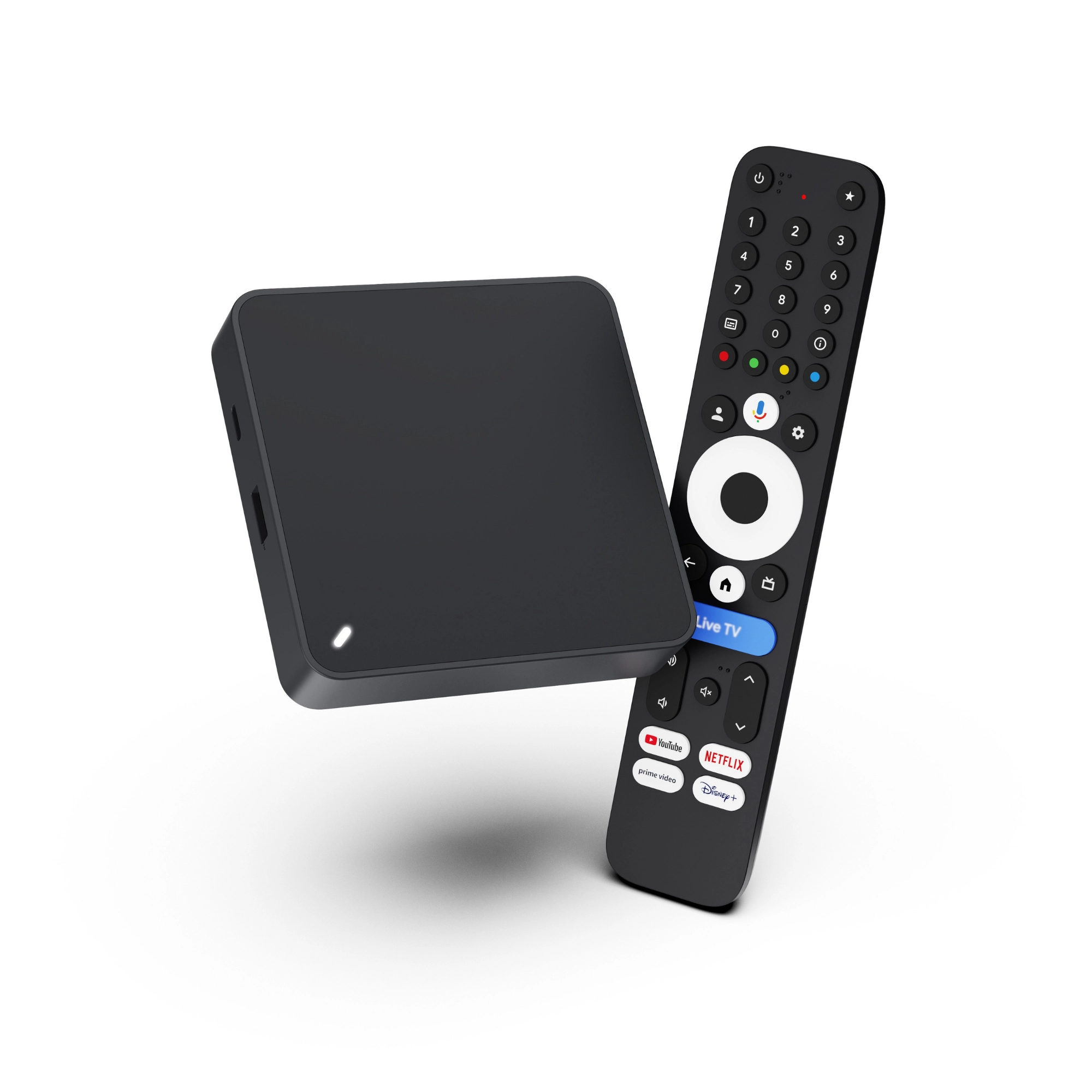

G2S – 4K Google TV Streaming Box
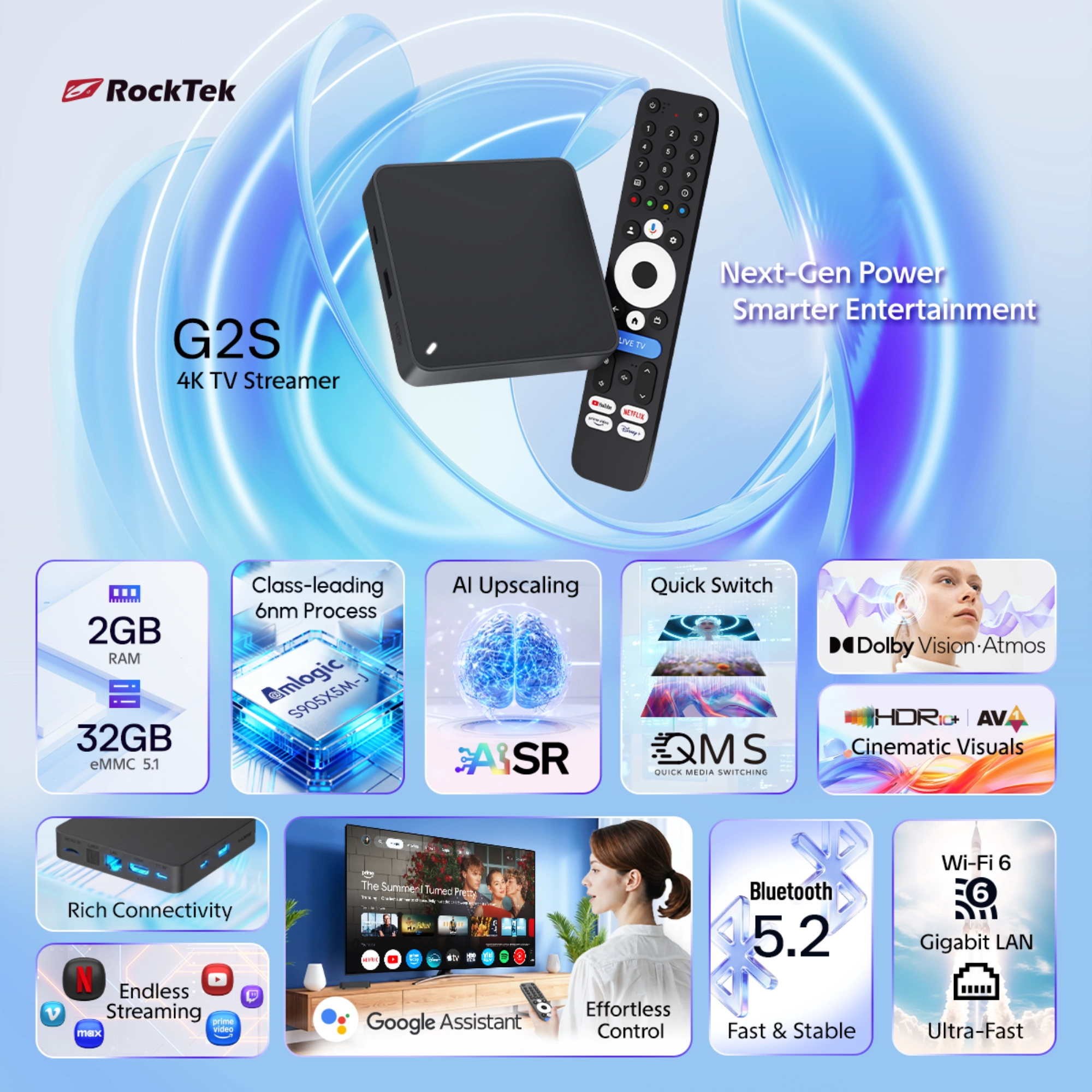
Powerful performance for your home cinema: The G2S combines the fast Amlogic processor, true Gigabit LAN, and 32 GB storage with full Dolby Vision & Atmos support.
Buy in official shopHighlights at a glance

Dolby Vision & AI
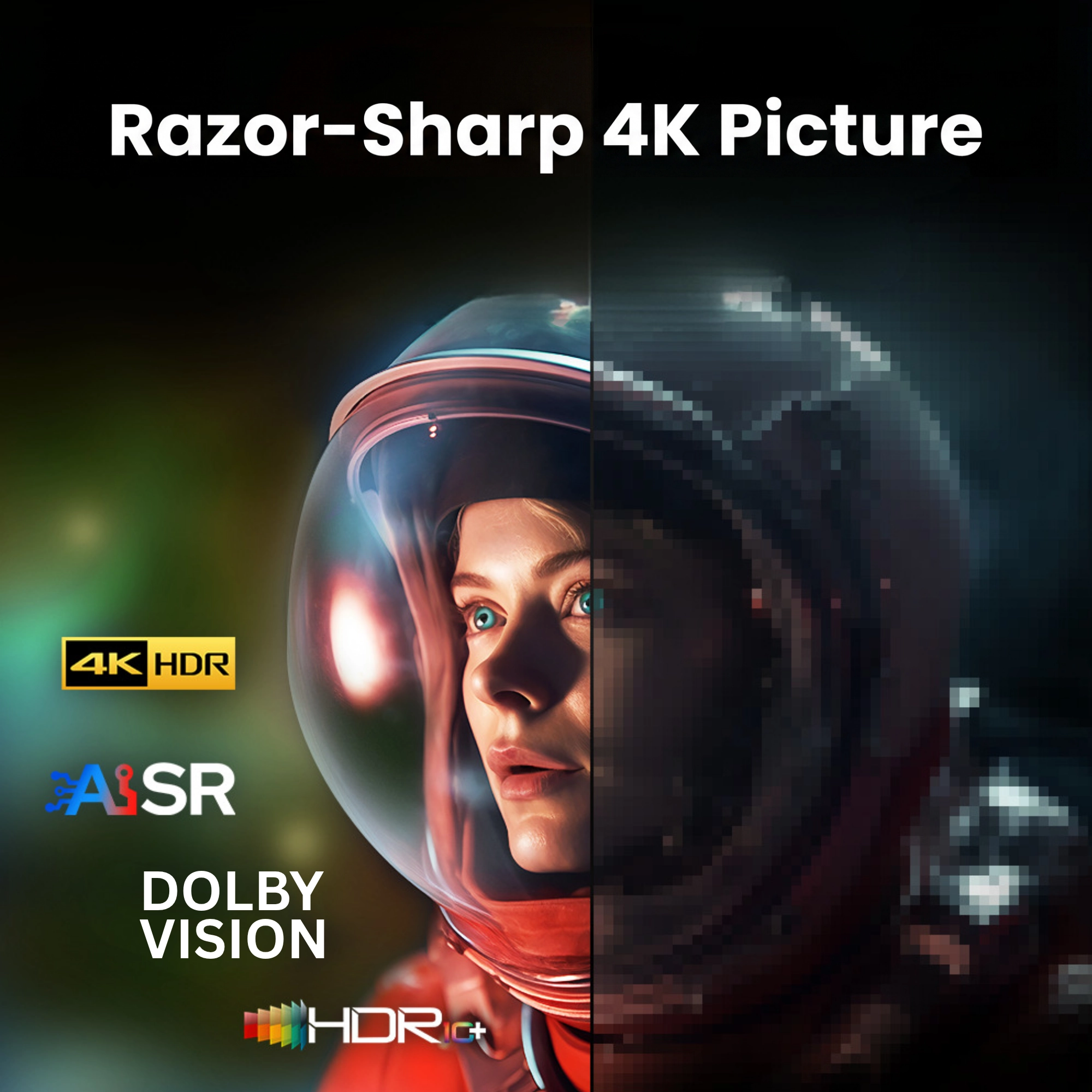
Razor-sharp 4K images with support for Dolby Vision, HDR10+, and automatic AI upscaling for visibly enhanced detail.

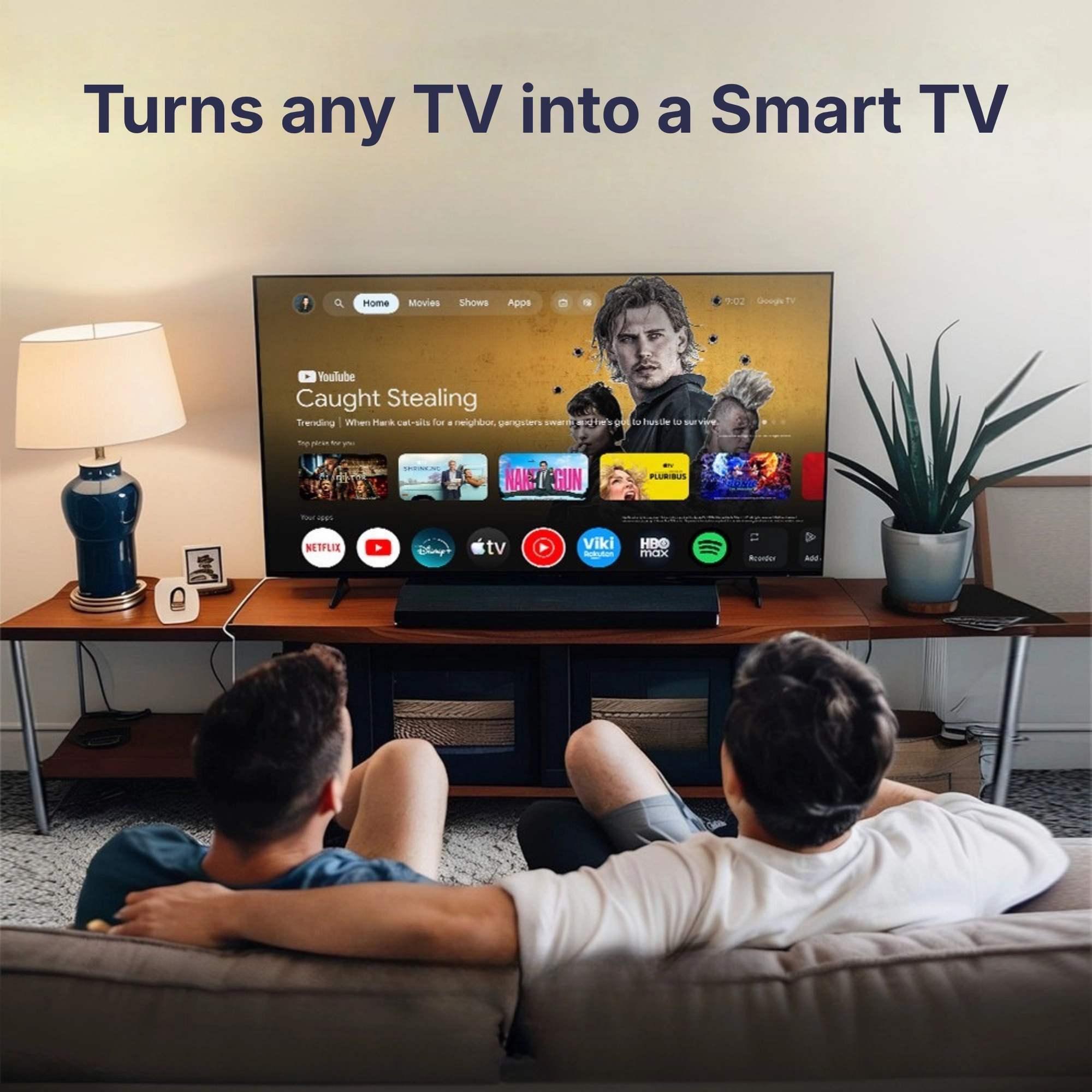
Modern Google TV 14
Smooth navigation across all media libraries and streaming apps thanks to 32 GB storage, the Google Play Store, and voice search.

Full Gigabit Speed
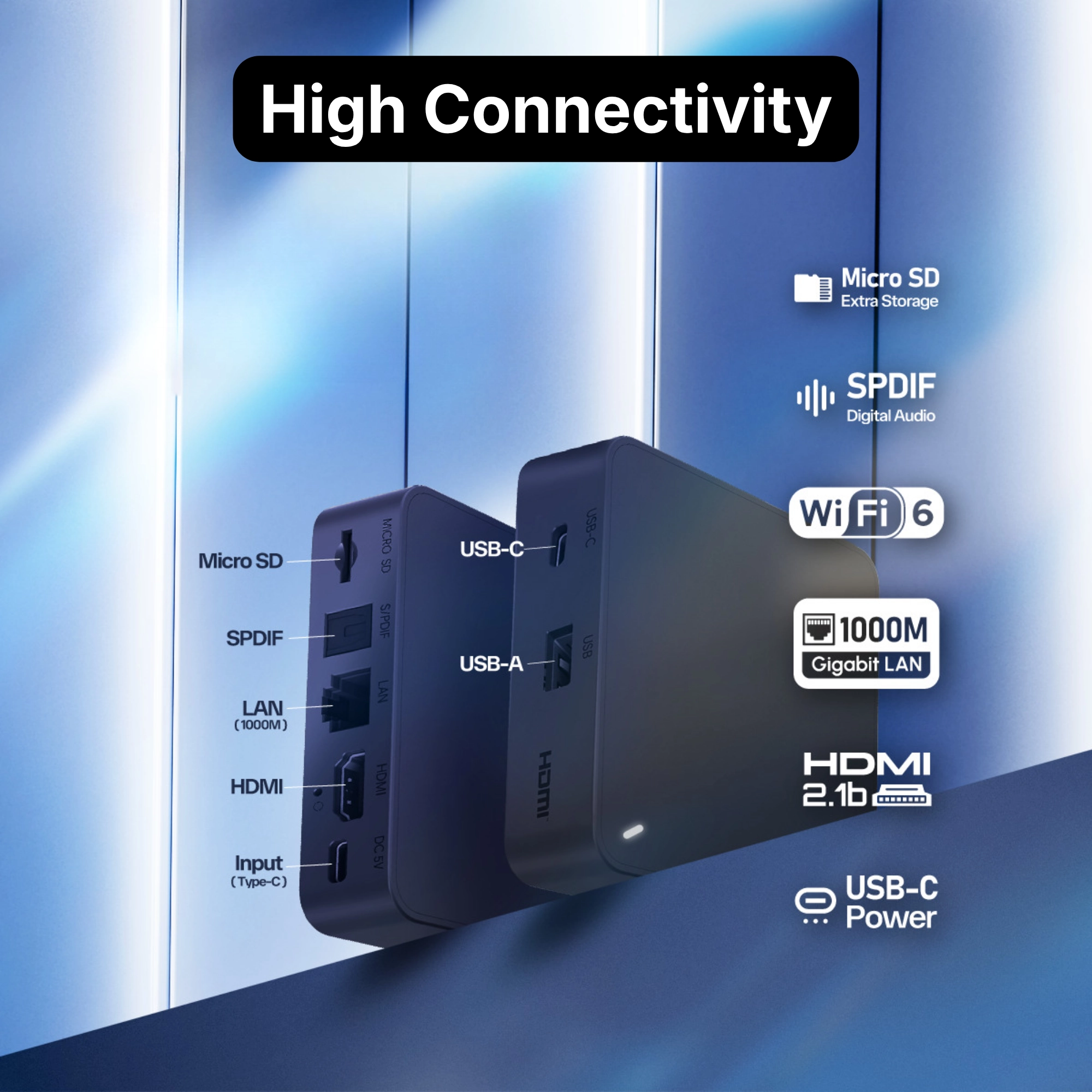
Buffer-free 4K streaming via LAN or WiFi: Equipped with a true Gigabit LAN port, fast WiFi 6, and Bluetooth 5.2.
True home cinema in your living room
Experience movies and series in studio-grade quality. With full Dolby Vision, HDR10+, and Dolby Atmos support, the G2S delivers vibrant colors, deep contrast, and immersive surround sound on your TV or soundbar.

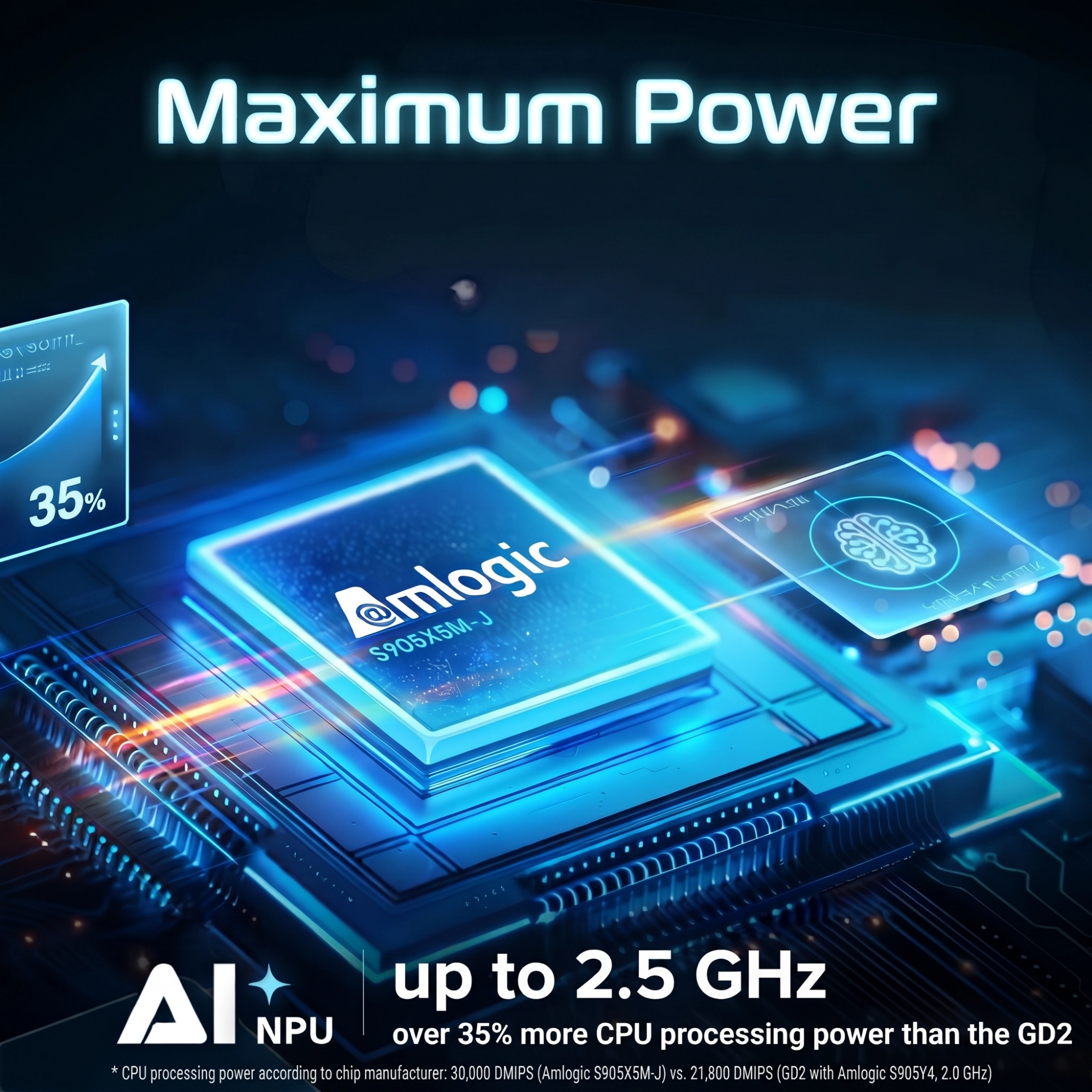
35% more CPU computing power¹
Powered by the modern Amlogic Quad-Core processor, the G2S delivers up to 35% higher computing performance than the GD2. Every button press feels noticeably snappier with short loading times, fluid menus, and smooth 4K playback.

Sharper images with AI Upscaling
Even broadcasts in standard HD resolution gain visible clarity. Integrated AI Super Resolution upscales live TV channels and older videos to 4K in real time while reducing distracting image noise.
Your entertainment in one place
On the clean Google TV 14 home screen, your favorite series, live TV channels, and streaming libraries are always right at hand. Simply press the microphone button to search by voice for movies, actors, or YouTube videos.

32 GB storage for all your favorite apps
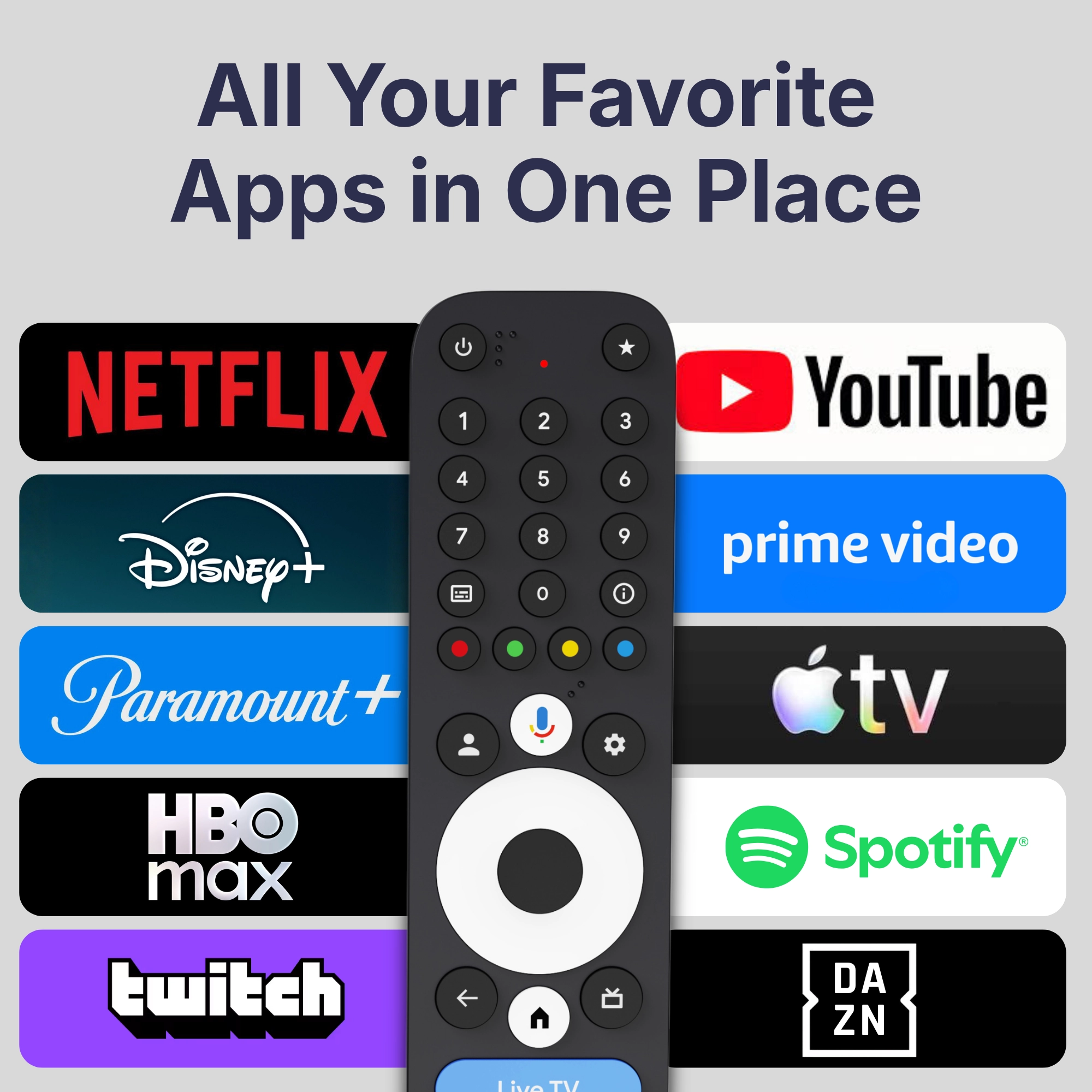
While basic streaming sticks often run out of space after just a few apps, the G2S offers a generous 32 GB of internal storage. Download Netflix, Prime Video, Disney+, Apple TV+, YouTube, or Kodi directly from the official Google Play Store.

Connectivity without compromise
Despite its compact footprint, the G2S includes every essential port: A true Gigabit LAN port and WiFi 6 for rock-solid streaming, plus USB-C, USB 2.0, a MicroSD card slot, and an optical audio output.

Wirelessly from phone to TV
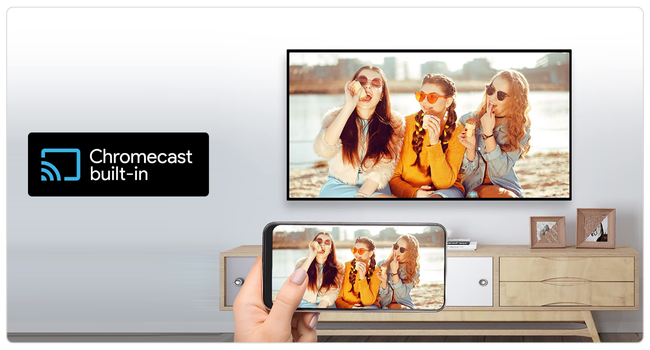
Share vacation photos, videos, or music playlists on the big screen in seconds. With Chromecast built-in™, you can cast content directly from your smartphone, tablet, or notebook to the G2S.
Technical Specifications
Buying Guide & Pre-Sales Questions
What do I need for connection and setup?
Which streaming apps run on the G2S & are there ongoing costs?
There are no monthly fees for operating the G2S itself. Costs only apply if you choose to subscribe to paid streaming services.
What is the advantage over a basic streaming stick?
- True Gigabit LAN & WiFi 6: Rock-solid 1000 Mbps Ethernet port for smooth 4K streams without WiFi fluctuations.
- 32 GB storage space: Four times the storage of many entry-level sticks – plenty of room for your favorite apps and media libraries.
- Versatile ports: USB-C, USB 2.0, and a MicroSD card slot for local media, plus an optical audio output (S/PDIF) for soundbars and receivers.
Can I play movies (MKV / ISO) from USB hard drives and flash drives?
How does the G2S compare to our other models (GD2, GX1 & G2 Next)?
- Compared to the GD2: The G2S offers a 35% faster 2.5 GHz Amlogic processor, true Gigabit LAN (1000 Mbps), WiFi 6, as well as USB-C and MicroSD ports.
- Compared to the GX1: While the GX1 uses a Realtek chipset with 100 Mbps LAN, the G2S scores with the 2.5 GHz Amlogic processor, Gigabit LAN (1000 Mbps), Bluetooth 5.2, USB-C, and a MicroSD slot.
- Compared to the G2 Next: Both share the same 2.5 GHz processor, Gigabit LAN, and Dolby Vision & Atmos support. The G2S with 32 GB storage is our price-performance all-rounder, whereas the G2 Next doubles the storage to 64 GB for extra-large app collections.
Troubleshooting & Knowledge Base
Setup guide & support manual for your G2S: All key Google TV 14 menu options clearly explained – plus practical tips directly from our technicians.
Prime Video reports an HDMI / HDCP connection error when starting a movie
- Use the included HDMI cable: Connect the supplied HDMI cable directly to an HDMI input on your TV (without external splitters or switches).
- Brief power reset (renew handshake): Unplug both the TV and the G2S from the power outlet for approx. 30 seconds, unplug and firmly reconnect the HDMI cable, and restart both devices.
Colors look washed out, faces appear overexposed, or the picture is too dark on older TVs
- Enable automatic SDR/HDR switching: Open Settings → Display & Sound and turn on Match content dynamic range. This keeps the home menu in natural SDR and only switches when playing HDR or Dolby Vision movies.
- Check color space or reset in one click: Under Settings → Display & Sound → Dynamic range & Color format → Color format, YCbCr 4:4:4 8-bit is ideal (or RGB 8-bit on older monitors). Clicking Display setting reset restores all display parameters to factory defaults immediately.
- Disable Dolby Vision on older TVs: Under Display & Sound → Advanced display settings, you can force SDR via Preferred dynamic range (Force conversion) or individually disable Dolby Vision under Format selection.
Camera pans stutter in movies (24p) or Live TV channels (50Hz) freeze
- Enable frame rate matching for all TV models: Under Settings → Display & Sound → Match content frame rate, select Always. (Note: When starting a stream, the screen will briefly turn black for 1–2 seconds while your TV synchronizes to the exact frame rate).
- Fixed 50Hz for Live TV & IPTV: If your TV app does not support automatic frequency switching, go to Settings → Display & Sound → Resolution and manually select 4K (50 Hz) or 1080p (50 Hz).
The G2S automatically enters standby after 20 minutes without input
- Navigate to Settings → System → Power off timer.
- Open When inactive (Default: 20 minutes) and select a longer time window or “Never”.
A single streaming app fails to start or gets stuck on the loading screen
- Open Settings → Apps → See all apps and click on the respective app.
- Select Force stop and right below it Clear cache.
- Under Settings → Apps → Manage updates, you can also check at a glance if an app update is available.
Advanced display settings: “Allow game mode”, “Preferred dynamic range” & “Format selection”
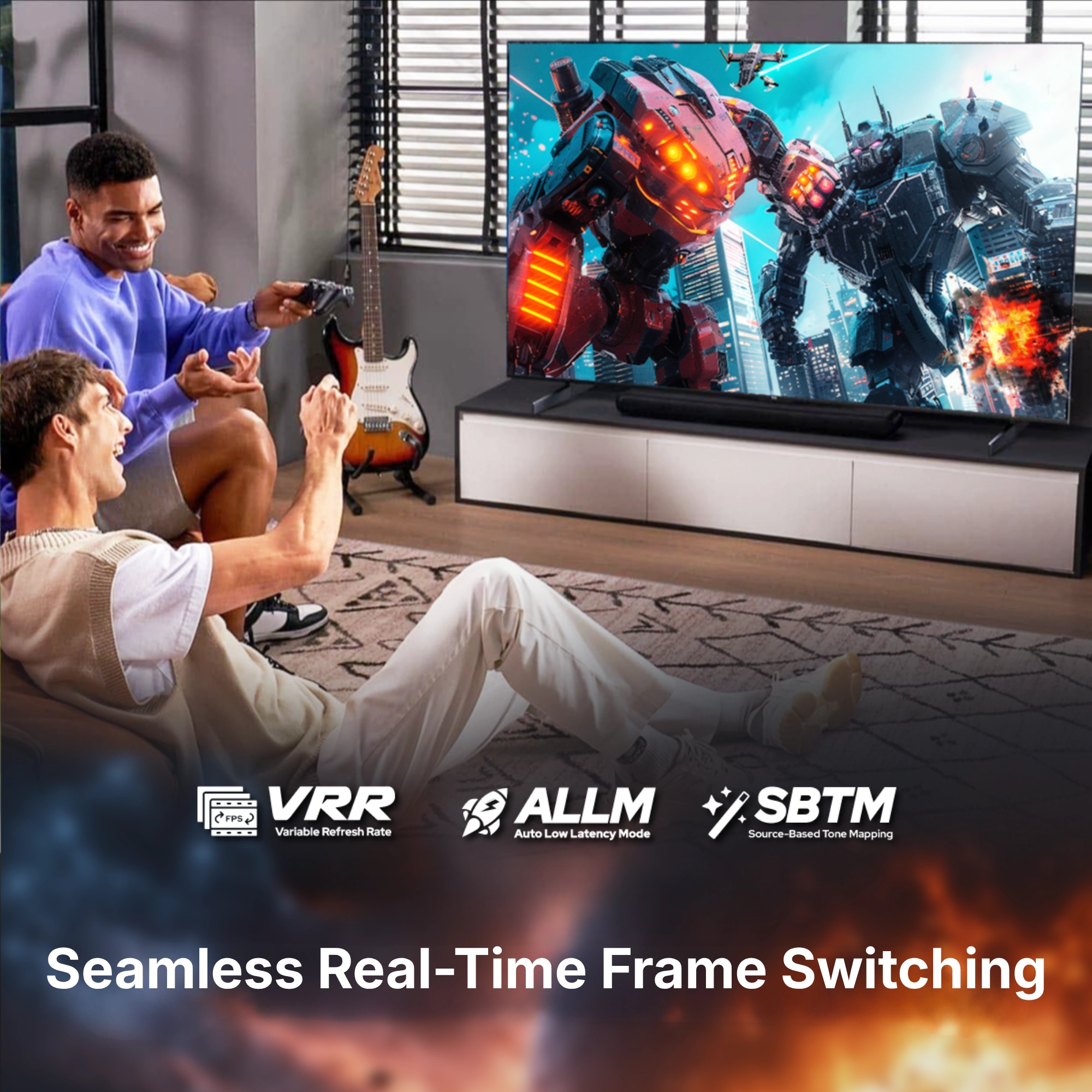
- Allow game mode (ALLM): Enabled by default and automatically activates low-latency Game Mode on supported TVs when launching games.
- Preferred dynamic range: Set to System-preferred conversion. Via Force conversion, you can lock output to a fixed format (such as SDR for older TVs) if needed.
- Format selection (deselect individual HDR formats): Set to Automatic by default. If your TV has trouble with Dolby Vision, select Manual – under “FORMAT INFORMATION” (Show formats), you can then disable Dolby Vision individually so movies play in standard HDR10.
Enlarge menu text on the TV screen (“Text scaling”)
Soundbar or AV receiver does not output Dolby Atmos / 5.1 (HDMI-ARC & optical output S/PDIF)
- Switch output to “Dolby digital plus”: Open Settings → Display & Sound → Audio options → Dolby preferred output and change from “Dolby mat” to Dolby digital plus. Dolby Atmos and 5.1 surround will then work immediately over standard HDMI-ARC as well.
- Manually unlock surround formats (HDMI & S/PDIF): Go to Settings → Display & Sound → Surround sound settings. Under “FORMAT INFORMATION” (Show formats), you can check detected formats or select Manual (Choose from available formats) to enable the desired formats (such as Dolby Digital / DTS via optical cable).
- Force pure stereo audio: If you use standard TV speakers or a monitor without a surround decoder, select Never use surround sound under Display & Sound → Surround sound settings.
Picture and sound are out of sync (“Audio video sync” / Lip-Sync on soundbar)
- Built-in Lip-Sync adjustment: With the Audio video sync function, the G2S provides a dedicated tool right inside the audio menu to fine-tune audio delay.
- Switch to “Dolby digital plus”: Under Audio options → Dolby preferred output, switch to Dolby digital plus – this noticeably reduces processing latency on many soundbars.
- Select “Passthrough” on your TV: If your soundbar is connected to your TV via HDMI-ARC, set the digital audio output in your TV's settings menu from “Auto” to Passthrough.
Remote control (“RemoteG21”): Re-pairing, battery level, TV buttons (“Set up remote buttons”) & number pad
- Pairing & battery indicator: The remote appears under “ACCESSORIES” as RemoteG21 along with its percentage battery level. To pair, select + Pair remote or accessory and press and hold the Home button + Back button simultaneously on the remote for approx. 5 seconds.
- Set up TV & soundbar control (“Set up remote buttons”): Via Set up remote buttons (Control volume, power, input on TVs, receivers and soundbars), you can configure the volume, power, and input keys for your TV or soundbar.
- Number keys (0–9) for Live TV: In supported TV apps (such as TiviMate, Zattoo, Waipu.tv, or MagentaTV), use the number pad to switch channels directly by channel number.
HDMI-CEC (“Enable HDMI-CEC”), Status LED (White/Red) & “Apps only mode”
- Control HDMI-CEC: Under Settings → Display & Sound → HDMI-CEC, Enable HDMI-CEC is turned on by default so your TV and box switch together. If your TV wakes the box unintentionally, simply turn Enable HDMI-CEC off.
- Status LED color: The front LED glows White during active operation and a subtle Red in standby.
- Home screen without movie suggestions (“Apps only mode”): Under Settings → Accounts & sign-in, you can enable Apps only mode inside your Google profile so only your installed app tiles are shown on the home screen.
Check for system updates, restart box, Chromecast name & factory reset (“About” menu)
- Check for firmware & system service updates: Under System → About, select the top entry System update to search for new software versions. Additionally, under System → Google, you can run System services update.
- Customize device name: Under About → Device name, assign a custom name (e.g., Living Room) for Chromecast display on your phone.
- Restart system: At the bottom of Settings → System, Restart performs a clean reboot.
- Factory reset: For a full reset, select Settings → System → About → Reset.
Click sounds (“System sounds”), “Ambient screensaver”, storage space & keyboard
- Turn off navigation click sounds: Go to Settings → Display & Sound and disable the System sounds toggle right under the “SOUND” section.
- Screensaver (“Ambient screensaver”): Via Settings → System → Ambient screensaver, you can launch the screensaver via Start now or customize the motifs under Settings.
- Storage overview & Chromecast (“Cast”): Under System → Storage, check the available space on the 32 GB internal storage. Further down, Cast controls casting permissions on your home network.
- External keyboards & system time: Under System → Keyboard, set your preferred physical keyboard layout. If apps fail to reach servers after a power outage, briefly check System → Date & Time.
USB hard drives (NTFS / exFAT), USB-C data port vs. 5V/2A power adapter & MicroSD cards
- Direct support for NTFS & exFAT: The G2S recognizes storage drives formatted in FAT16, FAT32, and exFAT (Read & Write) as well as NTFS (Read) out of the box. For playing local video collections (including MKV and ISO), we recommend free media players like Kodi, VLC, or Nova Video Player from the Play Store.
- Important note on the power adapter (5V/2A): Always connect the included 5V/2A power adapter to the rear power socket (DC). Do not power the box via a standard TV USB port, as its low current (usually only 0.5A) is insufficient for 4K playback.
- USB-C, USB 2.0 & MicroSD up to 128 GB: Both the side USB-C port and the USB 2.0 port can be used for flash drives, hard drives, or 2.4 GHz wireless dongles. The MicroSD slot supports SDHC/SDXC cards up to 128 GB.
- Tip for large 2.5-inch hard drives: Mechanical hard drives without their own power cord require high spin-up current – simply use a powered USB hub with its own wall adapter.
Optimize Gigabit LAN (1000 Mbps), WiFi 6 (5 GHz) & “Scanning always available”
- Unlock full 1000 Mbps on your router: To ensure the Gigabit LAN port reaches full speed, make sure the corresponding LAN port on your router is set to “1 Gbps / Power Mode” rather than “100 Mbps Eco/Green Mode”.
- Turn off background WiFi scanning (“Scanning always available”): At the bottom of Network & Internet, you can disable Scanning always available – this prevents unnecessary background network scans, especially when using a LAN cable.
- Stable 5 GHz reception with WiFi 6: Setting a fixed lower wireless channel on your router (channel 36 to 48) avoids brief pauses caused by automatic DFS radar detection on higher channels.
Optimal Kodi & Plex setup and managing apps (“Add more apps” / “Unused apps”)
- 24p matching & audio passthrough in Kodi: In Kodi, set Settings → Player → Videos → “Adjust display refresh rate” to On start / stop. For multi-channel audio via your AV receiver, enable Allow passthrough under System → Audio (View: “Expert”).
- Quick app management: Under Settings → Apps, you can install additional programs via Add more apps, keep them updated under Manage updates, or clean up space via Unused apps.
Why are partner apps like NordVPN pre-installed from the factory?
